Every TI-84 stores numbers as decimals internally, but it can display many results as fractions. Two menu items do most of the work on every model, and the CE adds fraction templates that look like a textbook.
The worked example
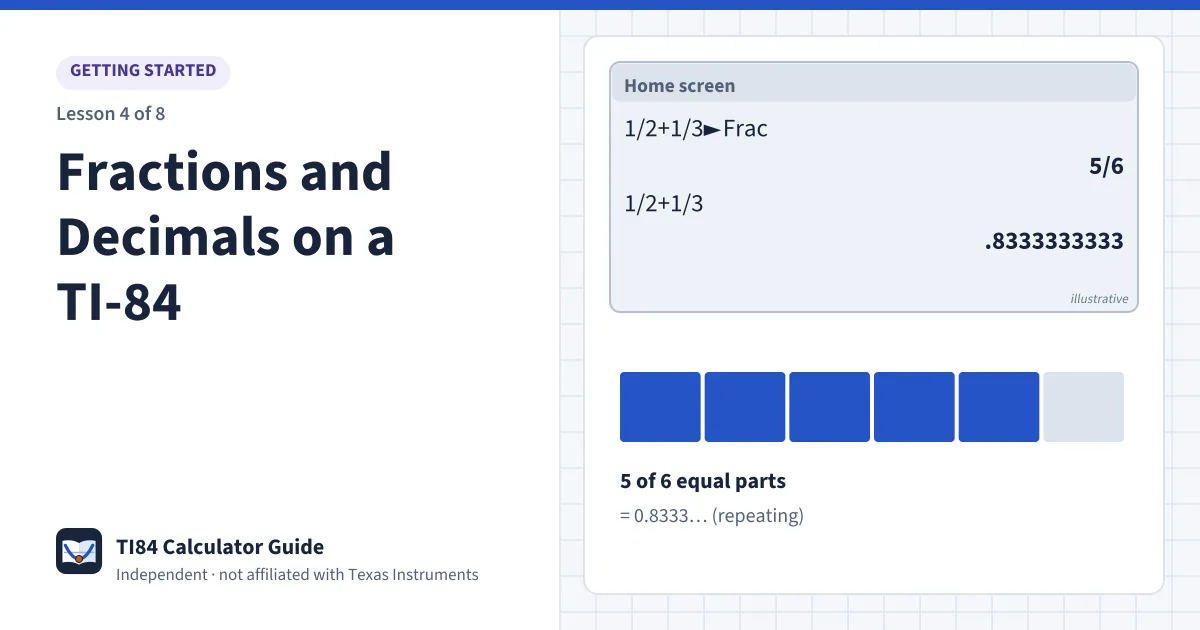
We will use one sum throughout: 1/2 + 1/3. By hand, the common denominator is 6, so 1/2 + 1/3 = 3/6 + 2/6 = 5/6, and 5 ÷ 6 = 0.8333… repeating.
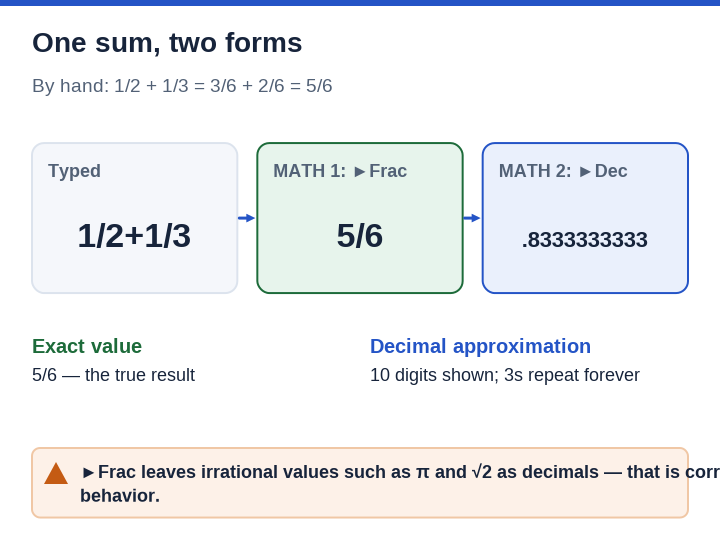
Method 1: ►Frac and ►Dec (all TI-84 models)
- On the home screen type 1 ÷ 2 + 1 ÷ 3.
- Press MATH 1. This pastes
►Fracafter your expression. - Press ENTER. The result is 5/6.
- To get the decimal, press MATH 2 (►Dec) ENTER after an answer, or simply evaluate the original sum without ►Frac. The result is .8333333333.
You can also convert the last answer: press 2nd (−) (ANS), then MATH 1 ENTER.
Method 2: fraction templates on the TI-84 Plus CE
The CE’s MathPrint mode displays stacked fractions:
- Press ALPHA Y= to open the F1 FRAC shortcut menu.
- Choose n/d. A stacked template appears; type 1, press ▼, type 2, then press ► to leave the template.
- Type + and insert a second template for 1/3.
- Press ENTER. Depending on the Answers setting in MODE, the CE may show 5/6 automatically.
- The FRAC menu’s F◄►D item toggles the result between fraction and decimal form; n/d◄►Un/d toggles between improper fractions and mixed numbers.
The CE’s MODE screen has a FRACTION TYPE line (n/d or Un/d) and an ANSWERS line (AUTO or DEC). If your CE always shows decimals, check ANSWERS.
When a decimal will not convert
►Frac looks for a fraction that matches the stored decimal. If it cannot find one with a small enough denominator, it leaves the decimal unchanged. That happens with:
- Irrational numbers such as √2 or π, which have no fraction form.
- Fractions with very large denominators — the TI-84 Plus guidebook notes a limit on the denominator it will search for.
So if π►Frac returns 3.141592654, the calculator is behaving correctly.
Mixed numbers
To enter 2½ on a CE, use the Un/d template from the FRAC menu. On any model you can type it as 2+1/2. Do not type 2 1/2 with a space or by putting the numbers side by side: 21/2 is twenty-one halves.
Common mistakes
- Missing brackets in a fraction with sums.
1+2/3+4is not (1+2)/(3+4). Type(1+2)/(3+4), or use the template, to get 3/7. - Expecting ►Frac to simplify a decimal you typed with rounding.
.333►Fracgives 333/1000, not 1/3, because .333 is exactly 333/1000. - Reading .8333333333 as exact. It is a rounded display of 5/6.
Practice
Check these with ►Frac: 3/4−1/6 gives 7/12; 2/3×9/4 gives 3/2; 1/8+1/8 gives 1/4. Our independent scientific calculator shows decimal results such as 0.833333333333 for 1/2 + 1/3, so it is useful for checking the decimal side; it does not have ►Frac.
Sources
- TI-84 Plus Graphing Calculator Guidebook (PDF) — Texas Instruments (checked November 23, 2026)
- Getting Started with the TI-84 Plus CE Graphing Calculator (PDF) — Texas Instruments (checked November 23, 2026)
How this guide was made: written by Paul B. Spicer with AI drafting assistance, following our editorial policy. Key sequences and menu names were checked against the Texas Instruments documents listed above; numeric examples are recomputed by automated tests. Diagrams are original illustrations, not screenshots. TI84 Calculator Guide is independently operated and is not affiliated with, sponsored by or endorsed by Texas Instruments. TI-84 Plus, TI-84 Plus CE and related names are used only to describe the calculators our guides cover. Found a mistake? Send a correction.