
Getting Started
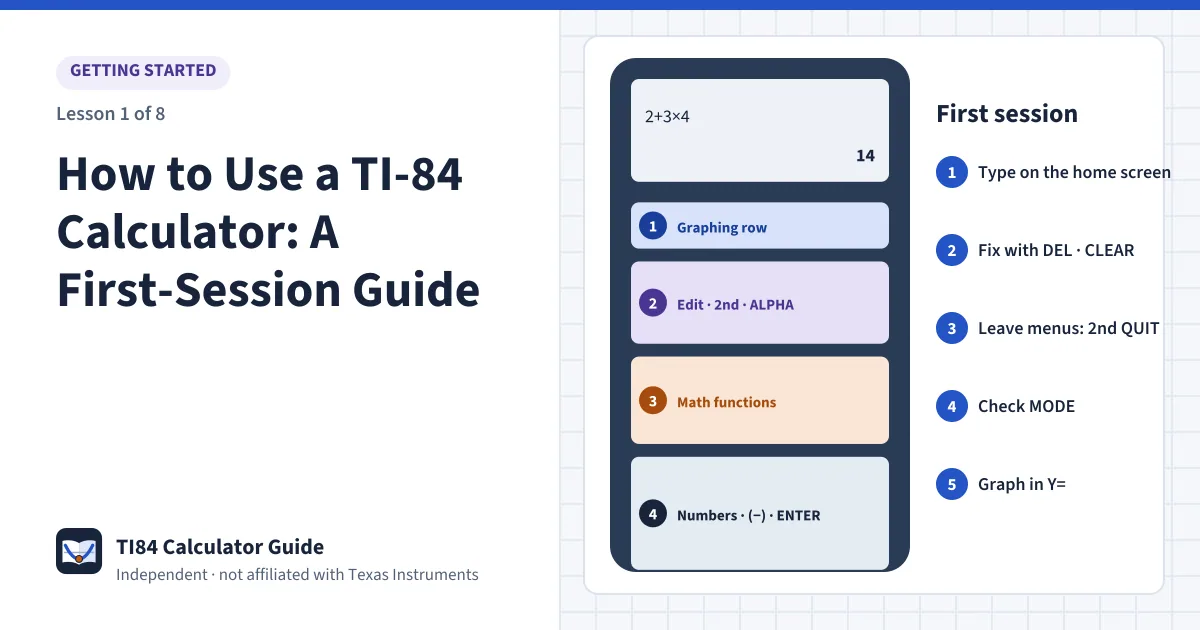
How to Use a TI-84 Calculator: A First-Session Guide
Identify your model, learn the home screen, correct a typo without starting over, check MODE, then graph y = x² − 4 and read one value from it.
Type at least two letters.
Every lesson on this site, organized into six learning hubs of eight. Each guide teaches one task on the TI-84 Plus and TI-84 Plus CE, names the model and official document it was checked against, and includes a worked example you can reproduce.
New to the calculator? Begin with how to use a TI-84. Looking for something specific? Use the search button at the top of every page.
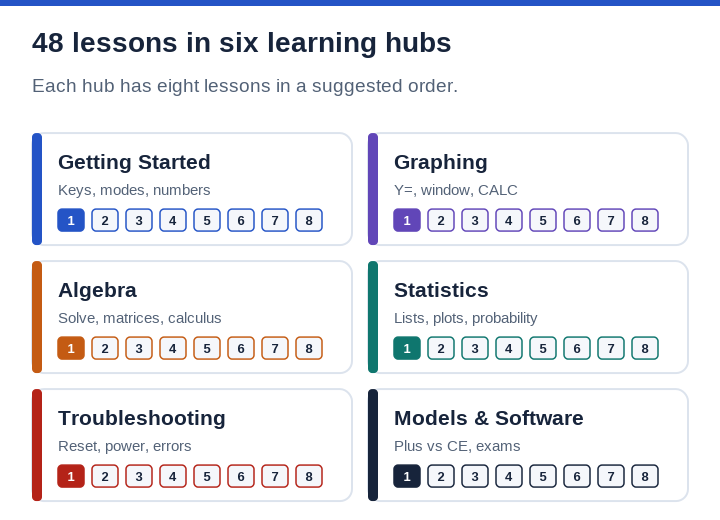
Keys, modes, fractions and the home screen
Identify your model, learn the home screen, correct a typo without starting over, check MODE, then graph y = x² − 4 and read one value from it.
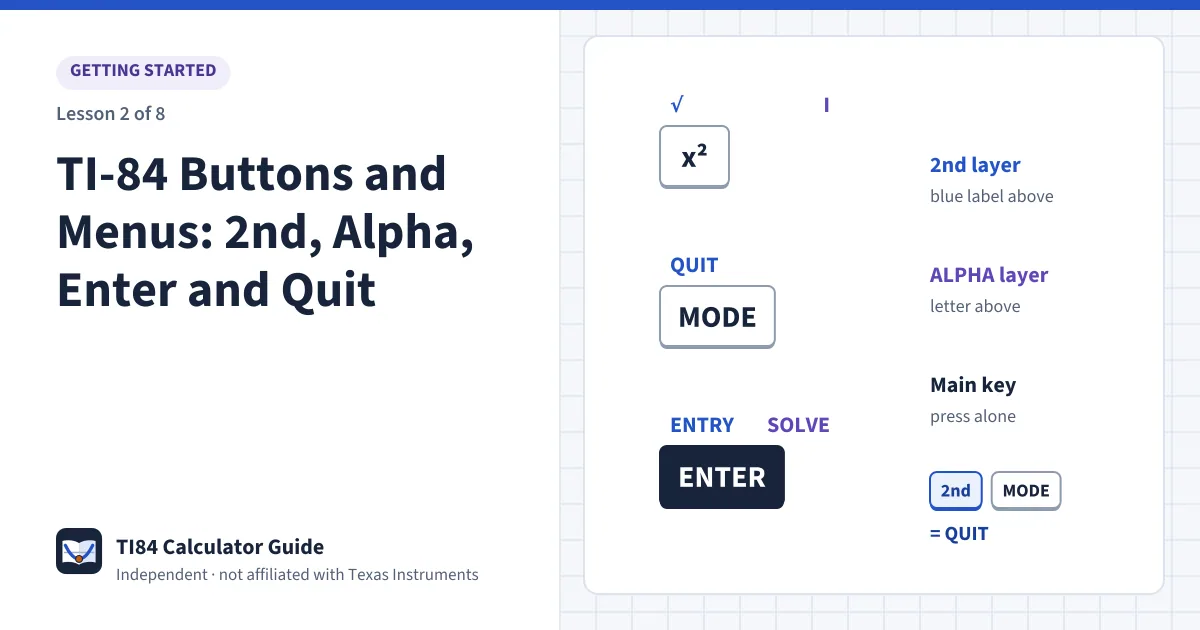
Every key has up to three jobs. Learn the 2nd and ALPHA layers, how menus number their items, and why CLEAR, QUIT and Reset are very different.
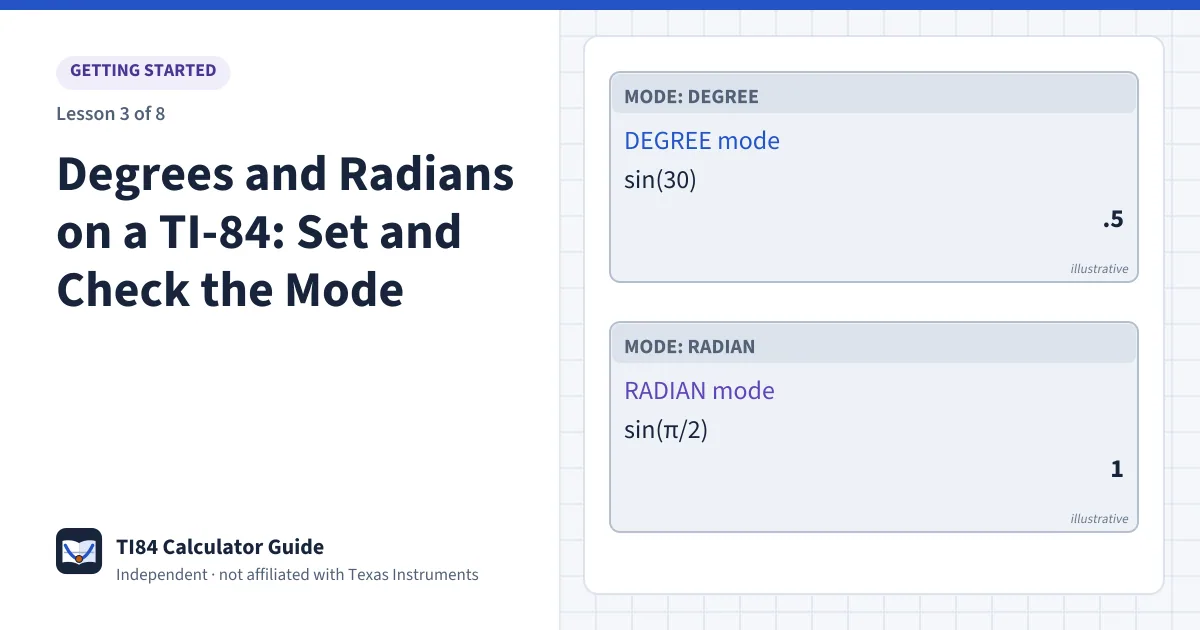
Why sin(30) can show −.988 instead of .5, how to switch between Degree and Radian in MODE, and how to override the mode for a single entry.
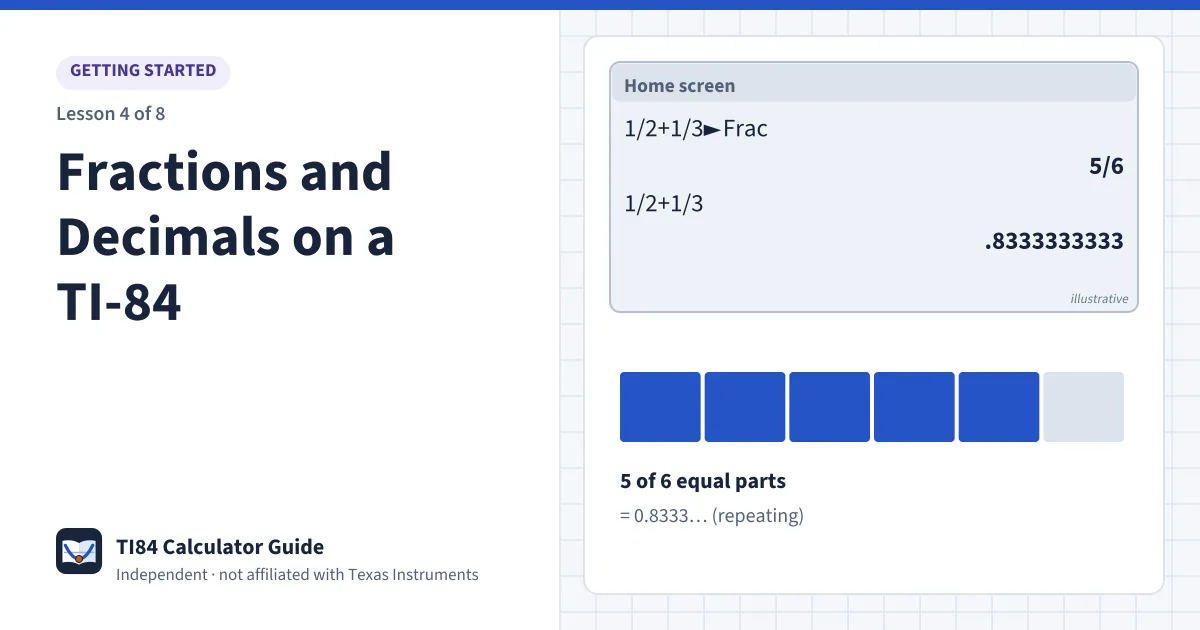
Use MATH ►Frac and ►Dec on any TI-84, the n/d template on MathPrint models, and see why 1/2 + 1/3 = 5/6 ≈ .8333333 while some decimals stay decimals.
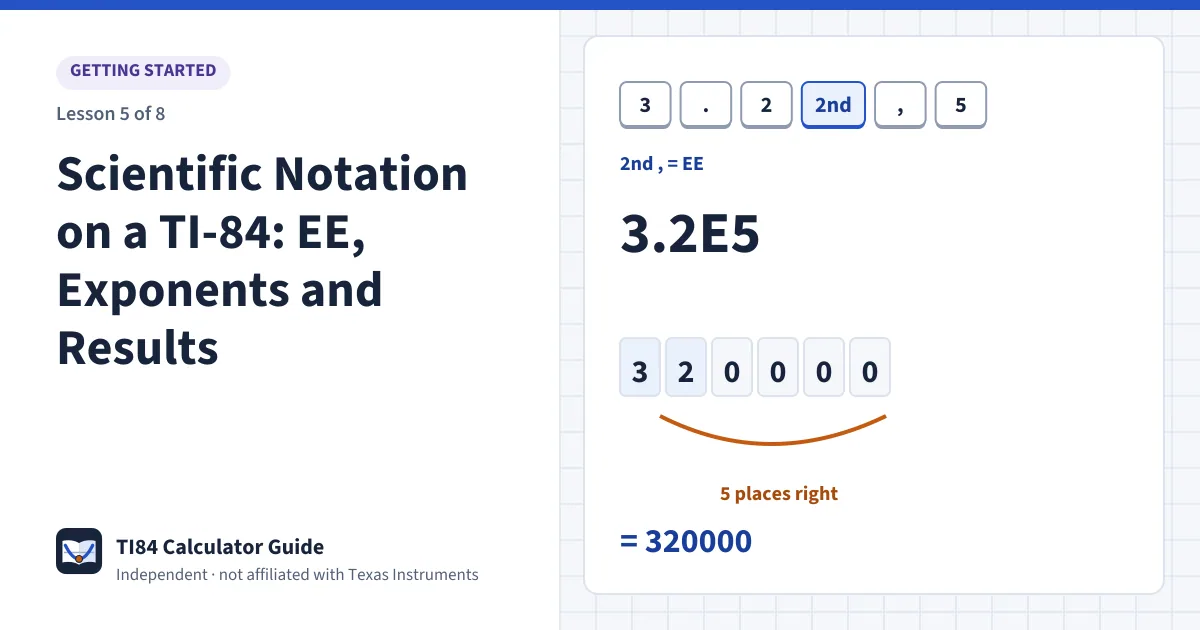
Enter 3.2 × 10⁵ with the EE key, read E-notation results, and avoid the common EE versus e mix-up. Worked: 3.2E5 = 320000 and 4.5E−3 = .0045.
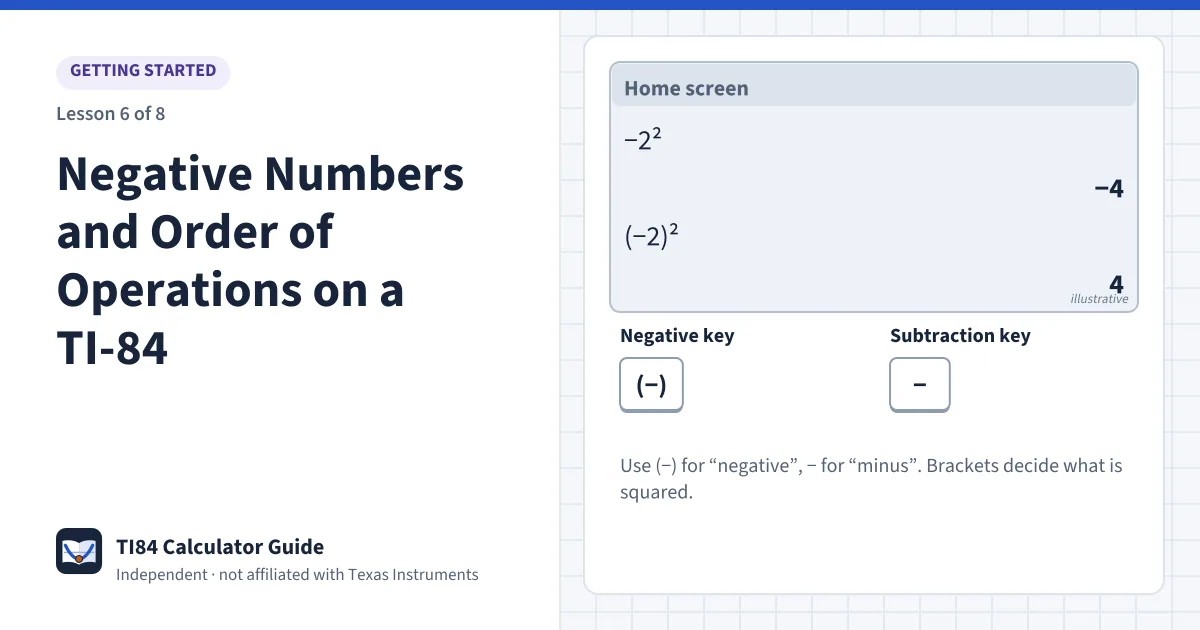
The (−) key versus the minus key, why −2^2 gives −4 but (−2)^2 gives 4, and a bracket checklist for fractions, powers and implied multiplication.
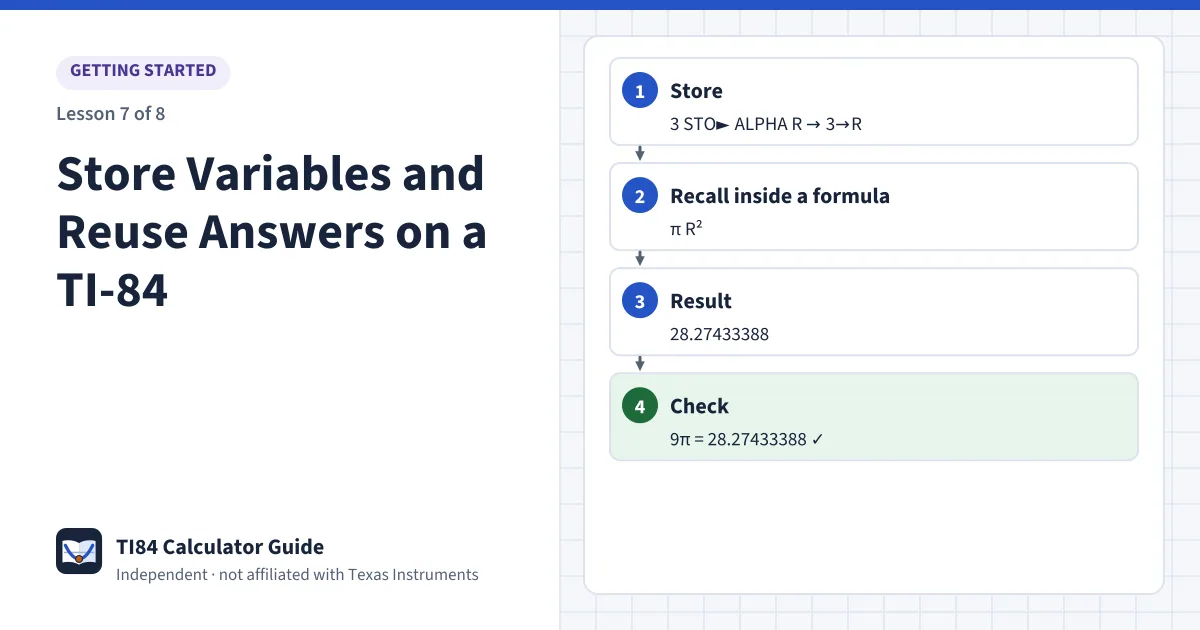
Three ways to reuse work: the Ans variable, the ENTRY history and STO► into letters A–Z. Includes the circle-area example and how to avoid overwriting a variable.
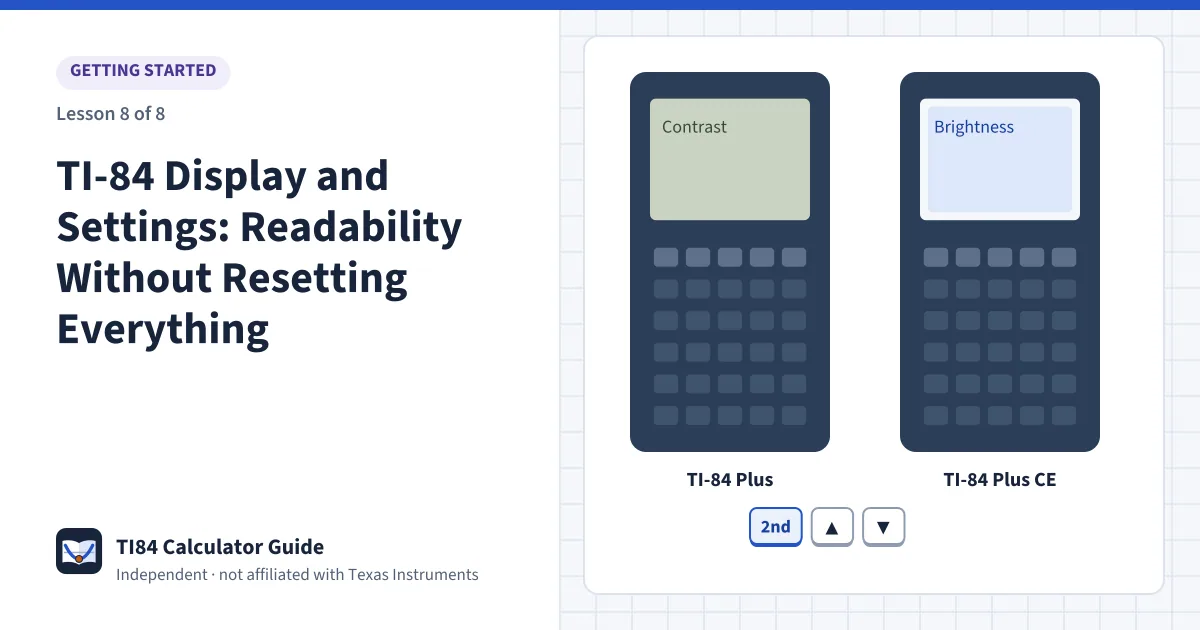
Make the screen readable and results tidy: contrast on the Plus, brightness on the CE, Float and fixed decimals, Normal/Sci/Eng and MathPrint versus Classic.
Y=, window, table, zeros and intersections
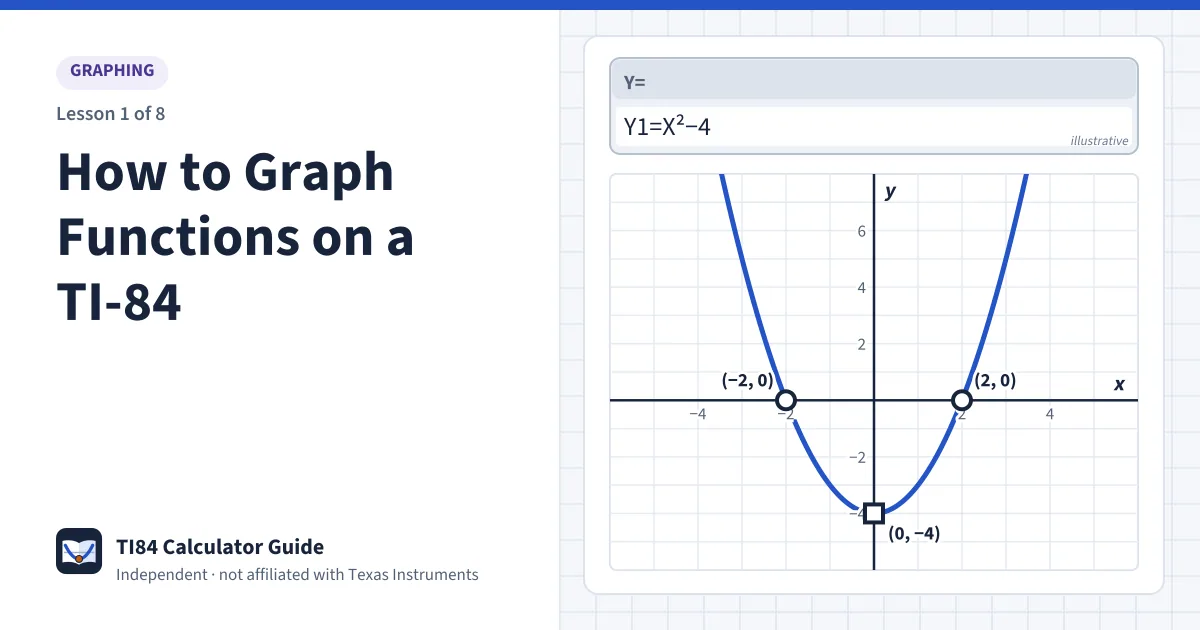
The complete Y= to GRAPH workflow: clear conflicting equations and stat plots, enter y = x² − 4, set a standard window, then trace roots and the vertex.
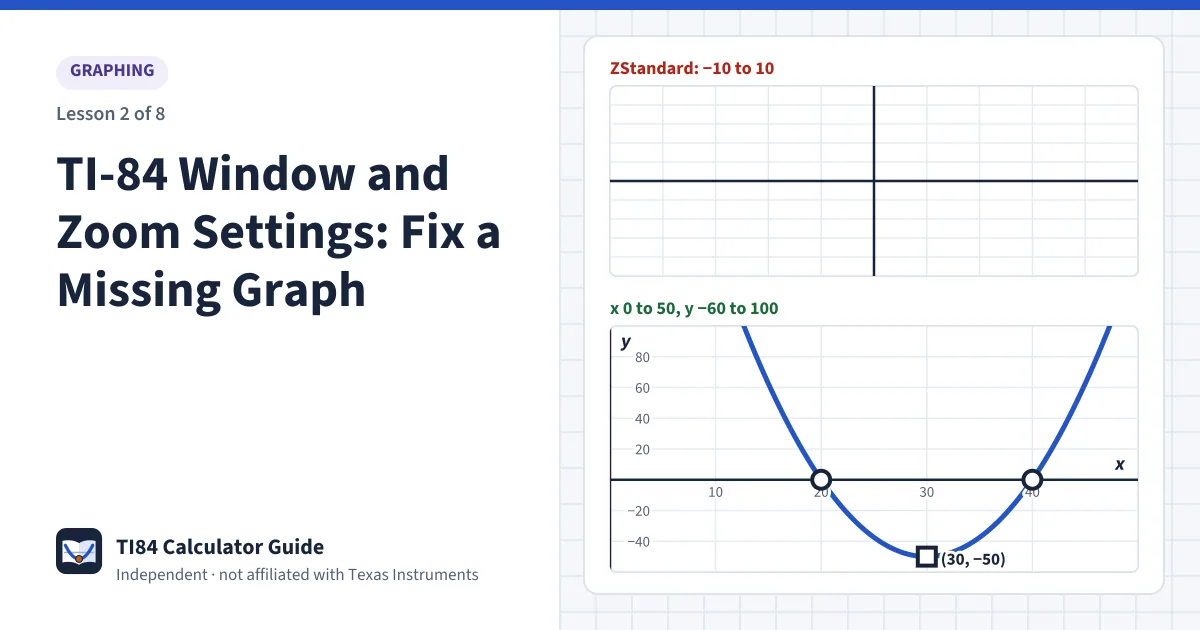
The graph of y = 0.5x² − 30x + 400 is invisible in the standard window but clear in x 0 to 50, y −60 to 100. Learn to read and set WINDOW and ZOOM.
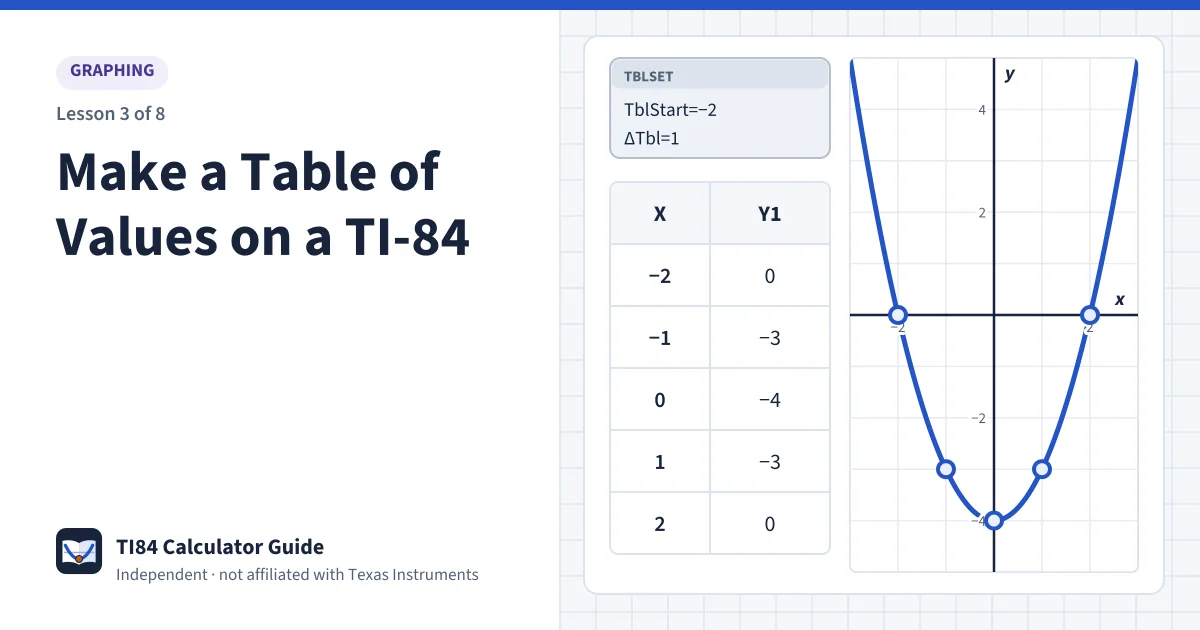
Use TBLSET and TABLE to list values of y = x² − 4 from x = −2 to 2, choose a step size, and switch to Ask mode to enter your own x-values.
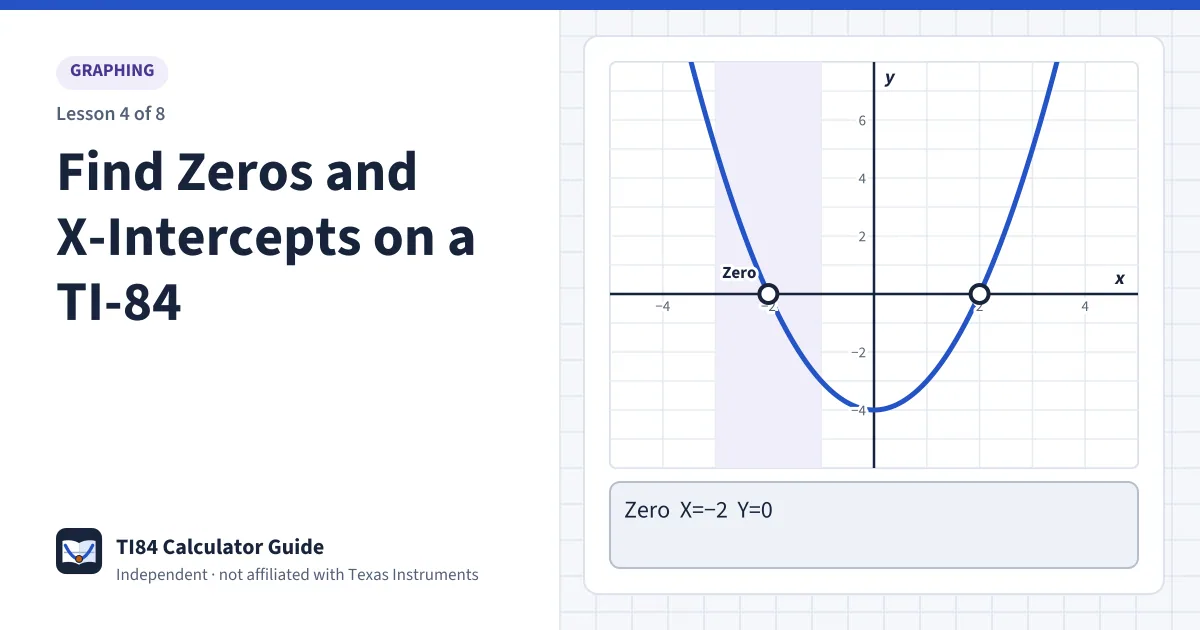
Bracket each root with Left Bound and Right Bound, then Guess. Find the zeros of x² − 4, and learn why a touching root like (x − 1)² needs a different method.
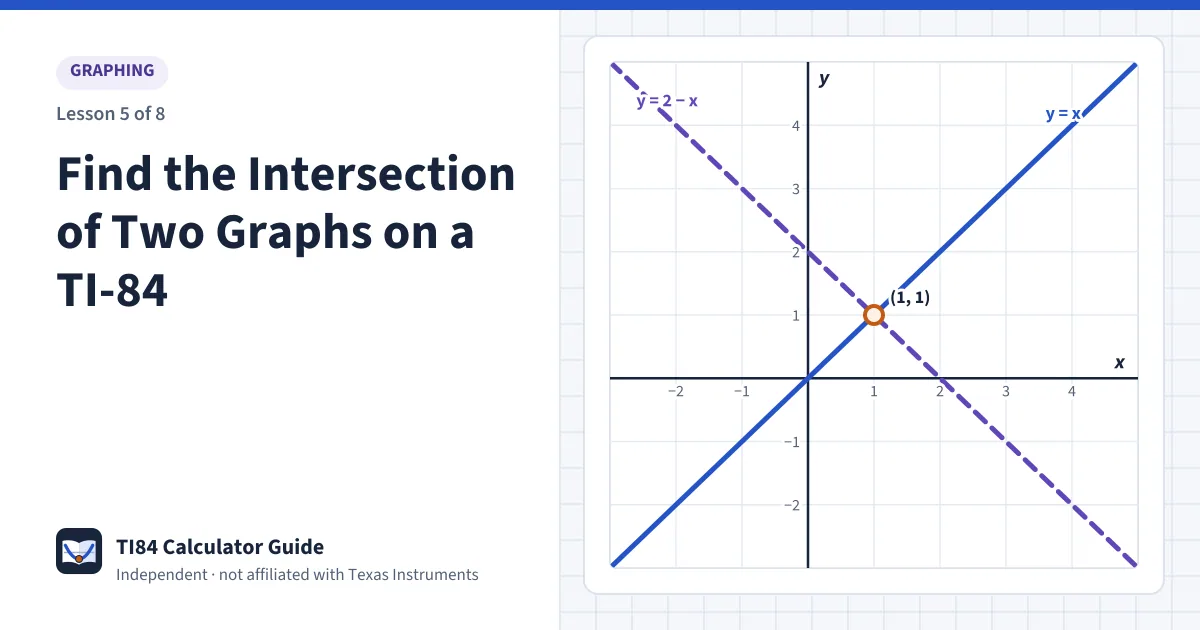
Graph y = x and y = 2 − x, then let CALC intersect find (1, 1). Learn curve selection, why the guess matters, and how to verify by substitution.
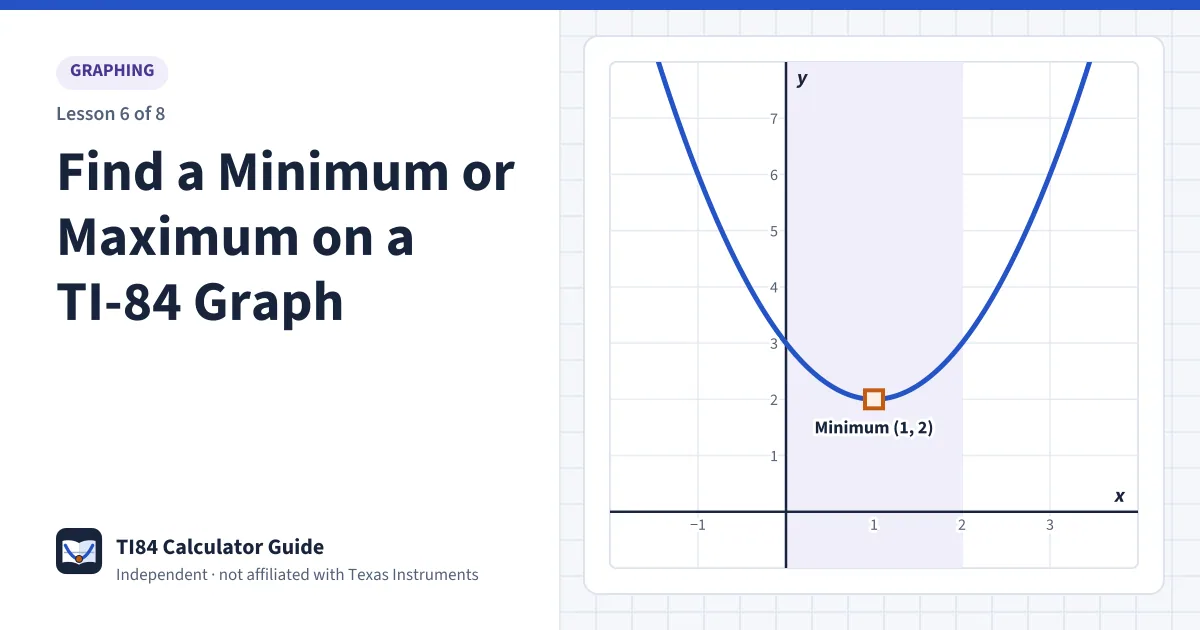
Find the turning point of y = (x − 1)² + 2 at (1, 2) with CALC minimum, and learn the difference between a local, window and global extreme value.
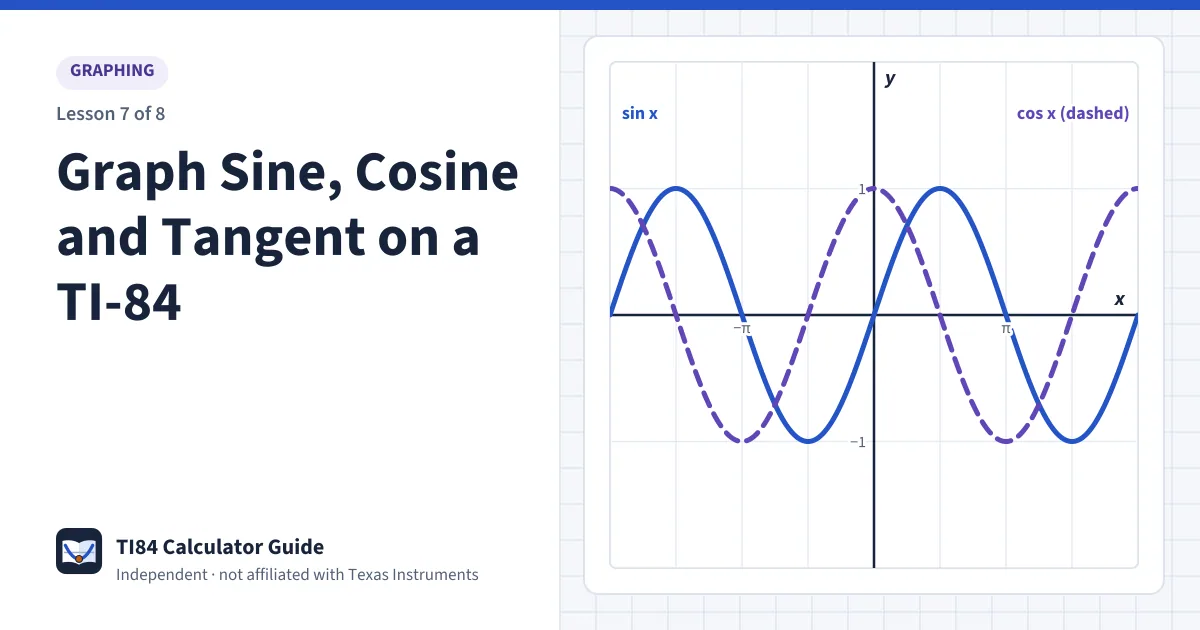
Set Radian mode, choose a window of −2π to 2π with π/2 ticks, and graph sine, cosine and tangent. Learn why connected-mode tangent graphs can show false vertical lines.
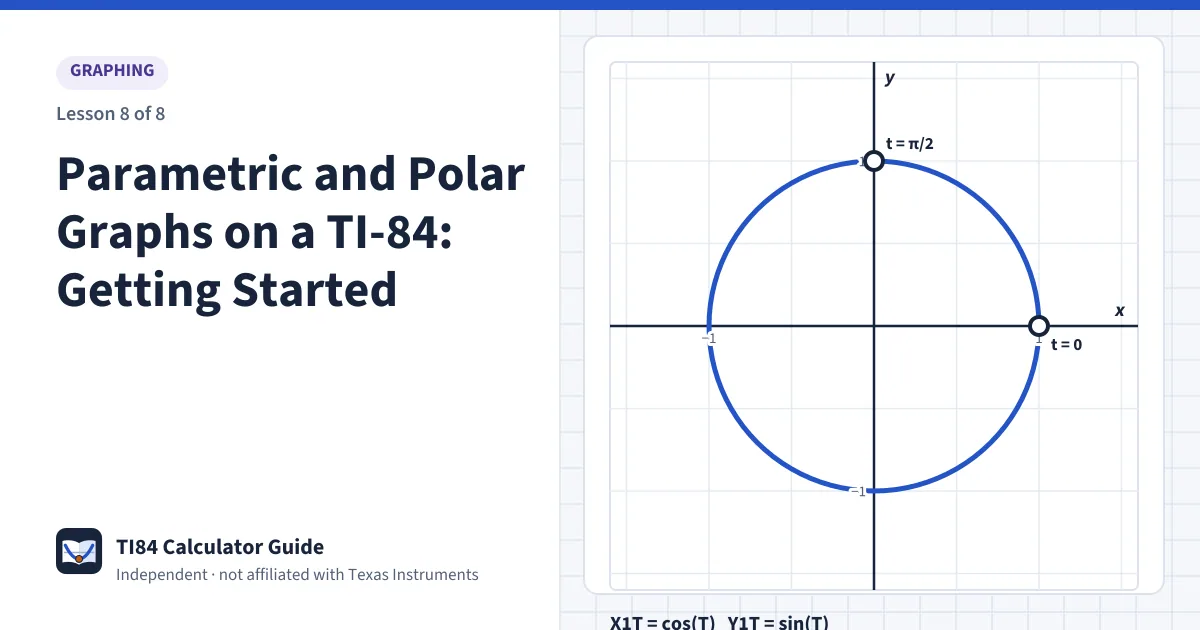
Change MODE to parametric or polar, set t or θ from 0 to 2π in steps of π/24, and draw the unit circle three ways. Includes ZSquare so it looks round.
Solving, quadratics, matrices, logs and calculus
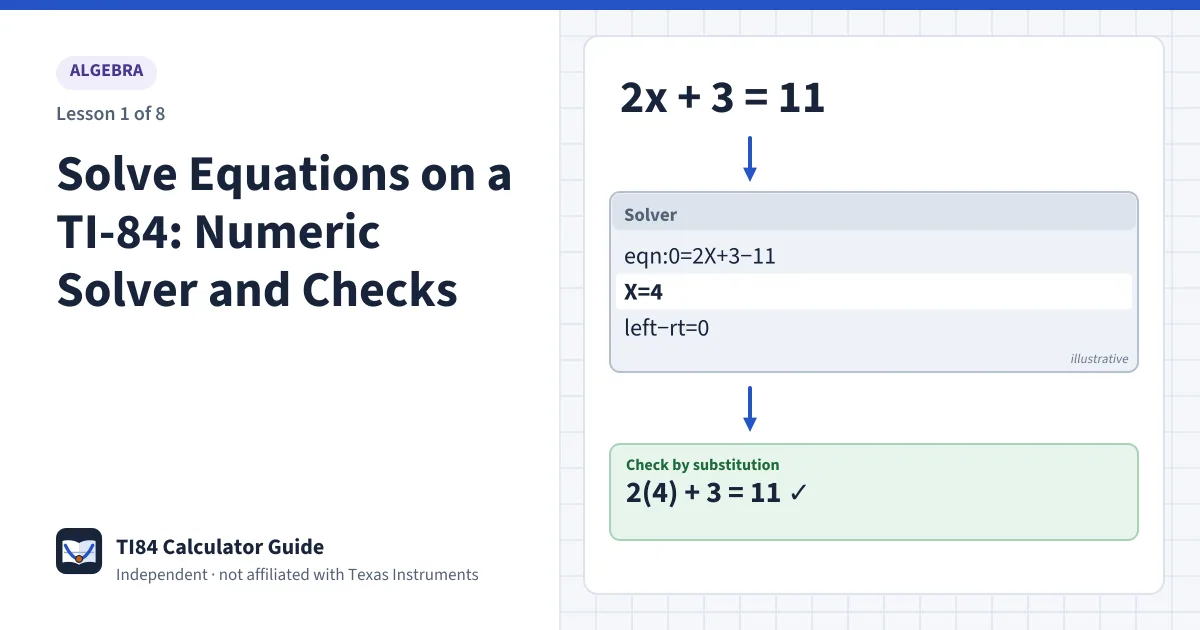
Solve 2x + 3 = 11 for x = 4 with the TI-84 Plus Solver or the CE Numeric Solver, then check it. Learn why a numeric solver finds one root at a time.
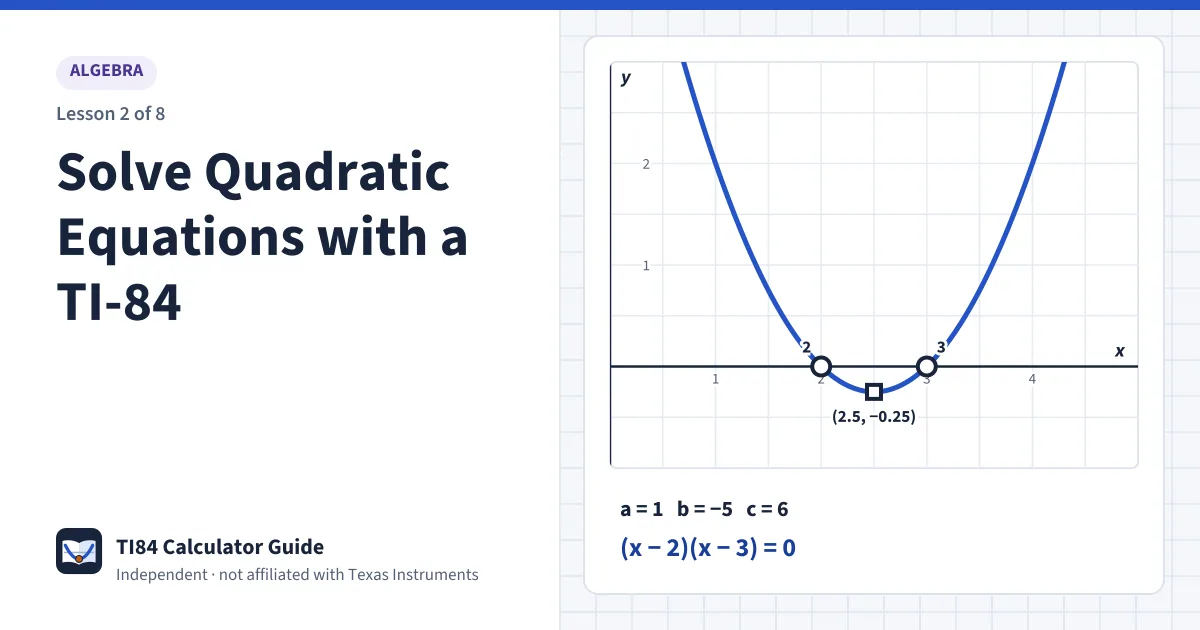
Solve x² − 5x + 6 = 0 by graphing, by the Solver and by the quadratic formula on the home screen, then check with the factorization (x − 2)(x − 3).
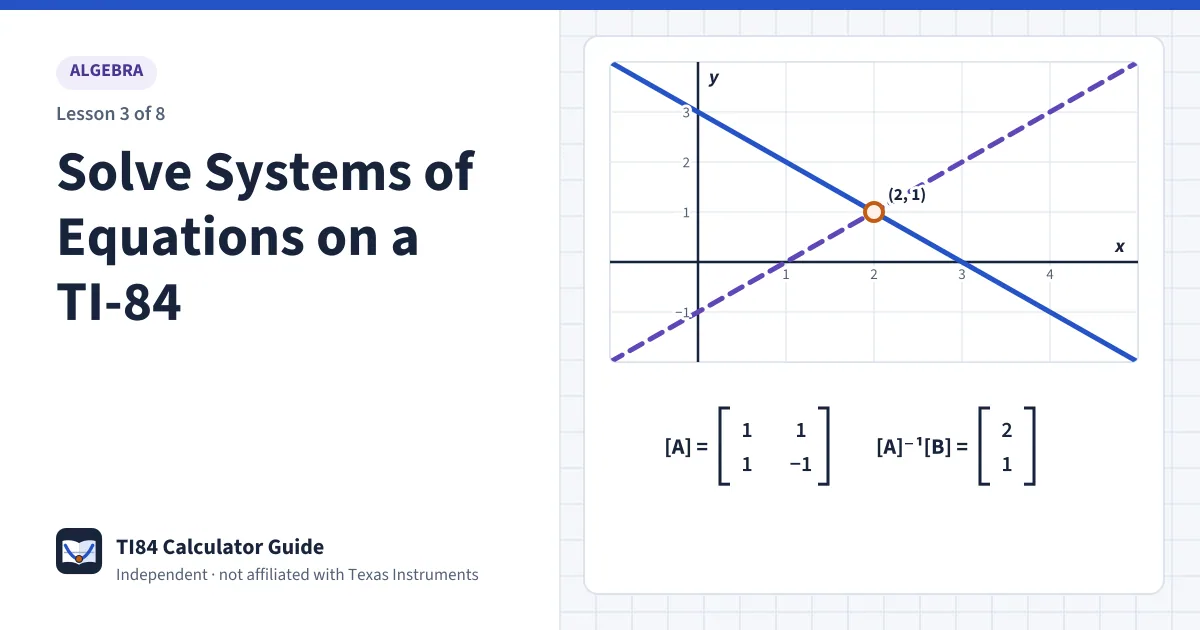
Find (2, 1) for x + y = 3 and x − y = 1 two ways — graph intersection and matrix inverse — and recognize when a system has no solution or infinitely many.
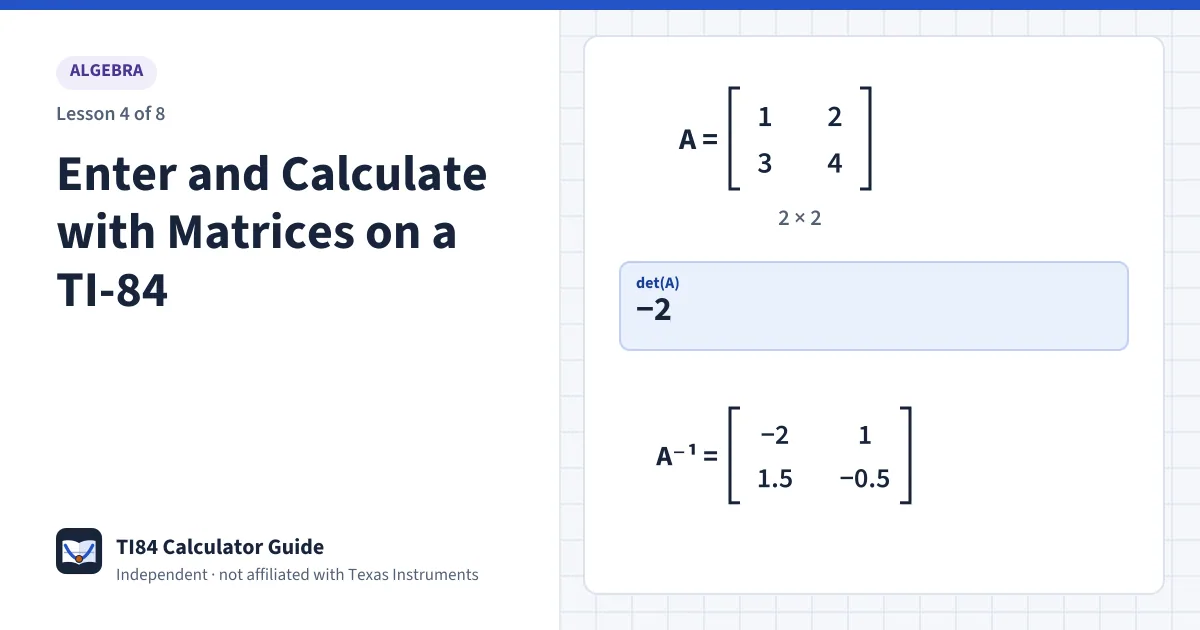
Set matrix dimensions, enter values, and compute A×B, det(A) = −2, A⁻¹ = [[−2,1],[1.5,−0.5]] and Aᵀ for A = [[1,2],[3,4]], with dimension rules explained.
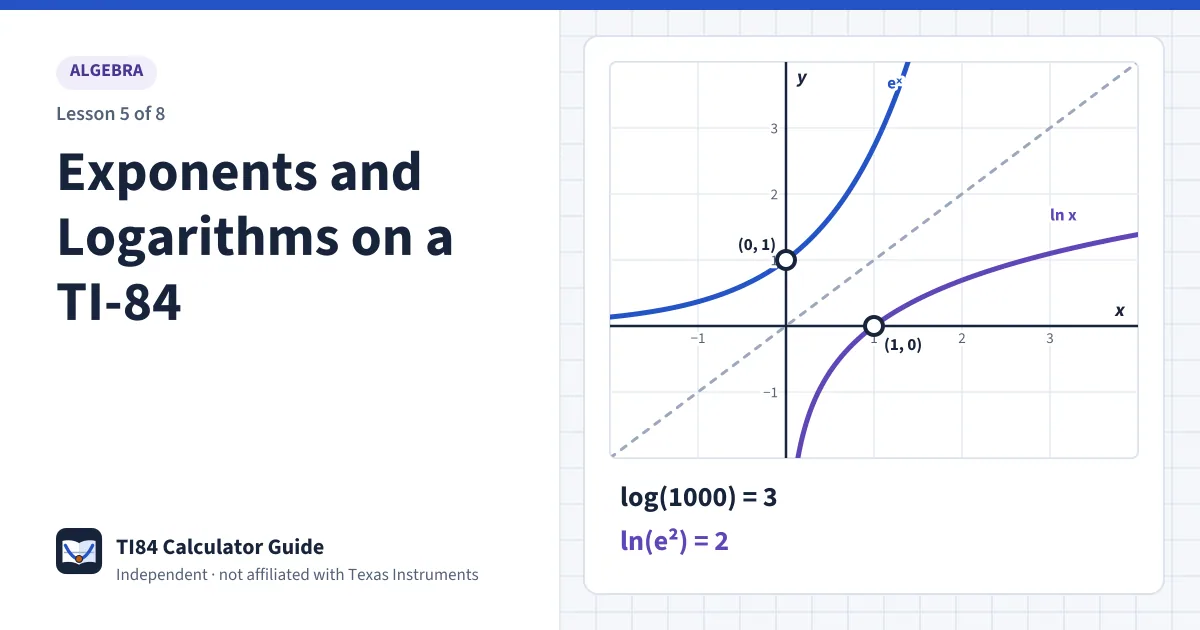
Powers and their inverse logs: log(1000) = 3, ln(e²) = 2, logBASE(8, 2) = 3. Learn which key does what and why log(0) and log(−1) give errors.
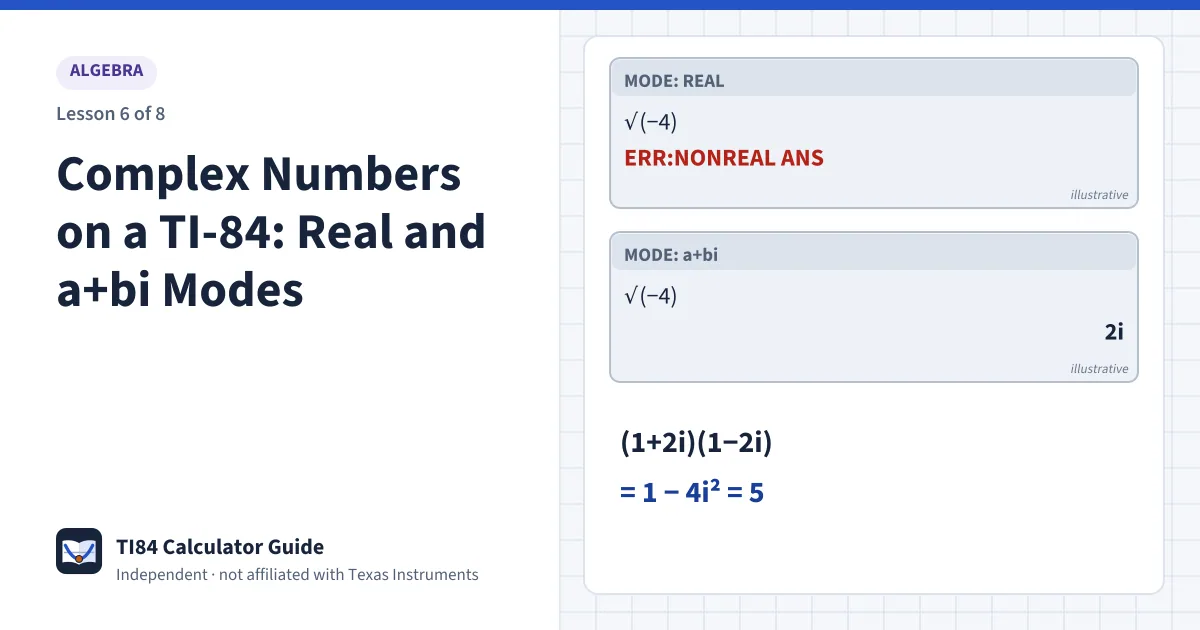
Why √(−4) gives ERR:NONREAL ANS in REAL mode but 2i in a+bi mode, how to type i, and how the CMPLX menu finds conjugates, real and imaginary parts and modulus.
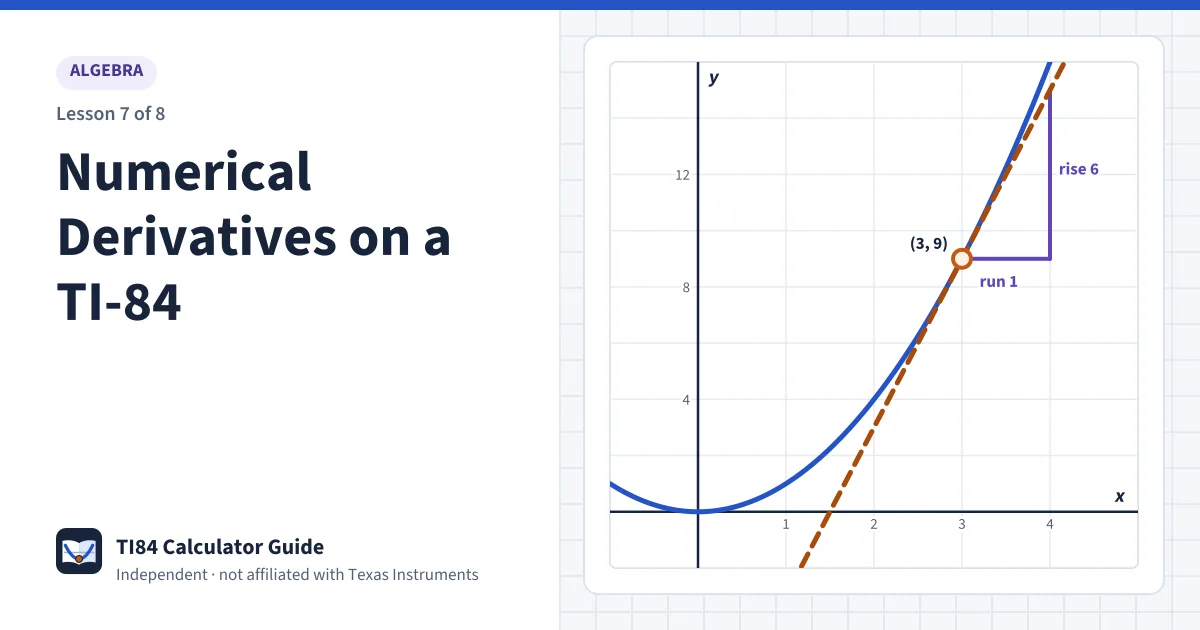
Use nDeriv(X², X, 3) = 6 and CALC 6:dy/dx to find a slope at a point. Learn how the symmetric difference works and why nDeriv(abs(X), X, 0) wrongly returns 0.
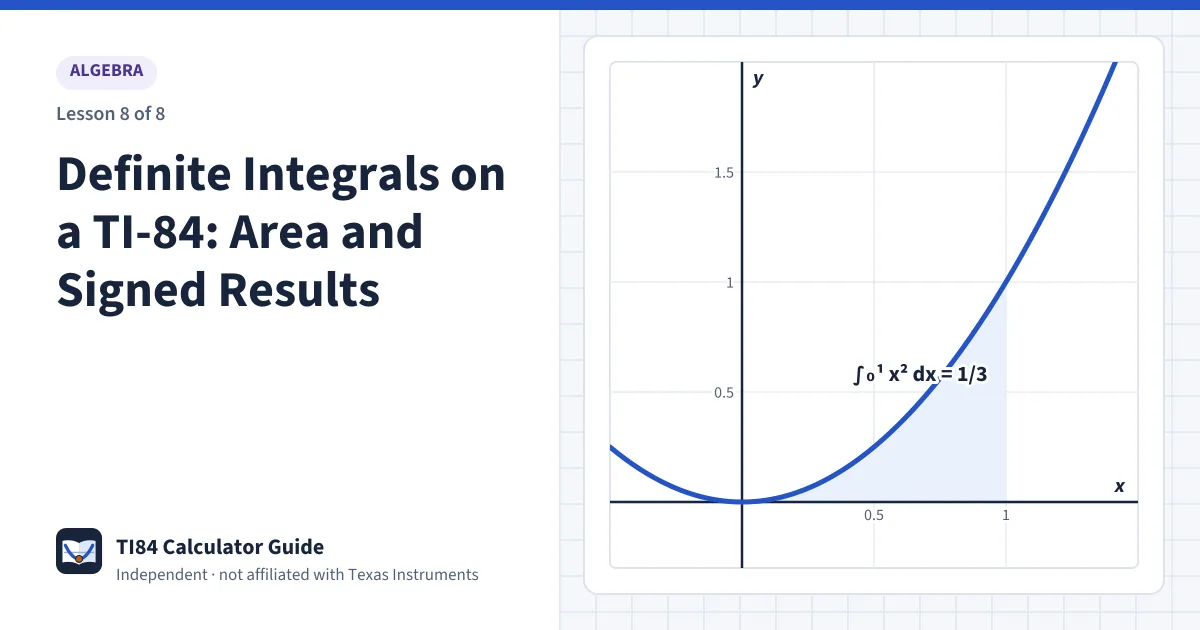
Compute ∫₀¹ x² dx = 1/3 with fnInt( and the graph CALC tool, then learn the difference between a signed integral and geometric area using x³.
Lists, 1-Var Stats, plots, regression and probability
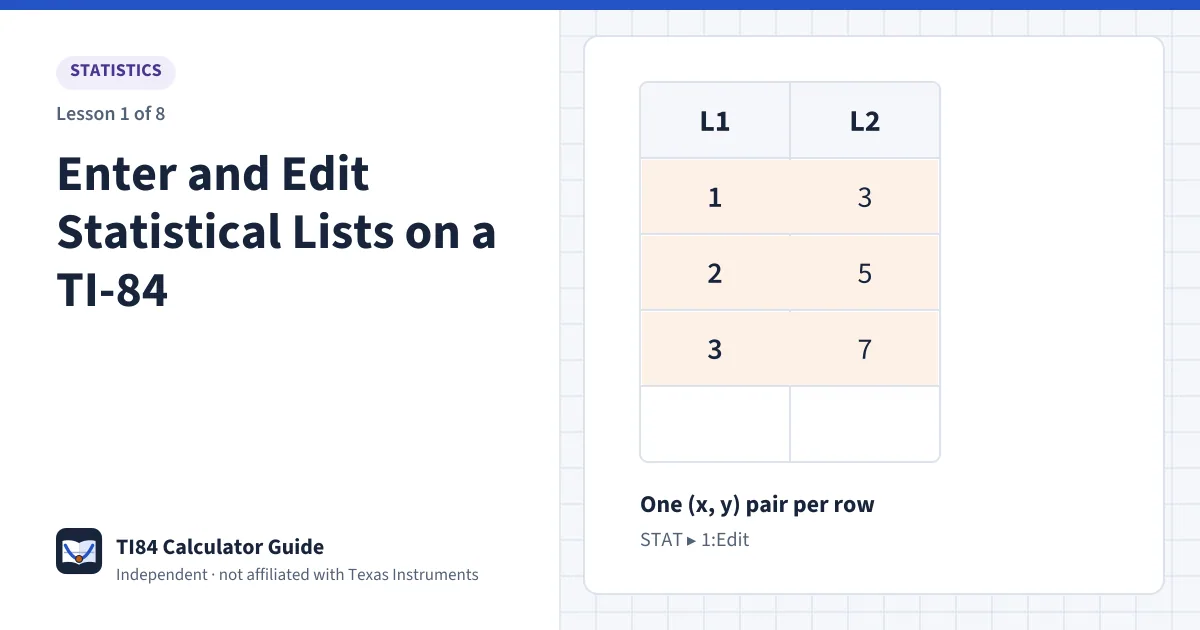
Use the list editor to enter, correct, insert and clear data in L1–L6 without resetting memory, and keep x and y values paired row by row.
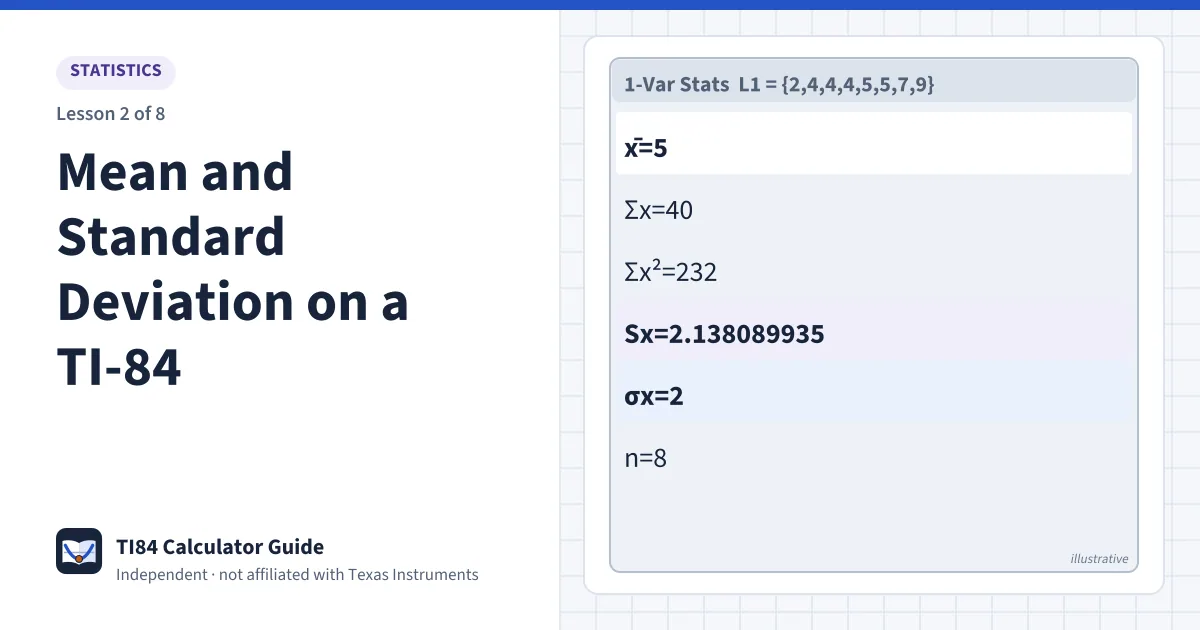
Use STAT CALC 1-Var Stats to get the mean and both standard deviations. Learn when to report Sx (sample) and when σx (population) for the same data.
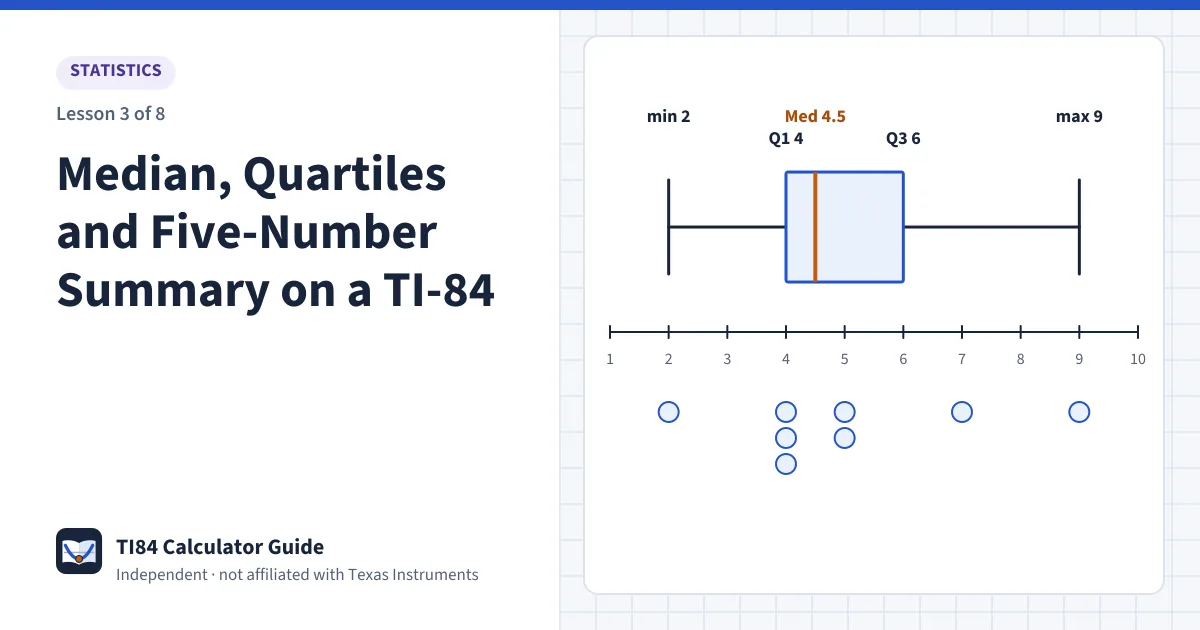
Get the five-number summary from 1-Var Stats, see exactly how the TI-84 splits the data into halves for Q1 and Q3, and why spreadsheets can disagree.
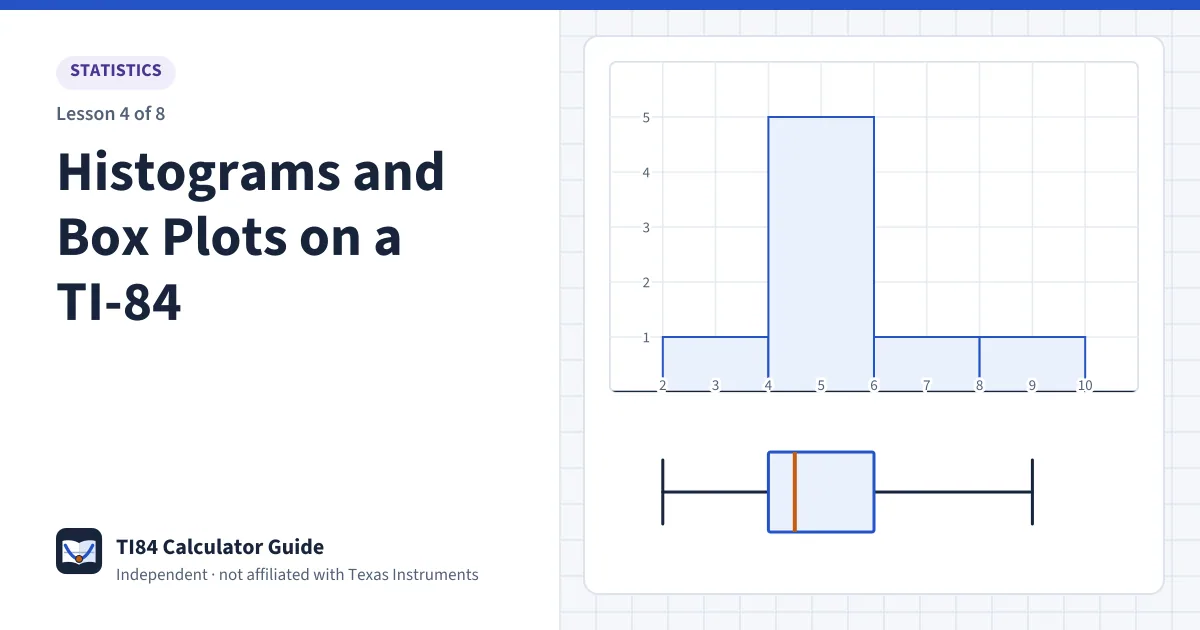
Turn on Plot1, pick Histogram or a box plot, and set Xmin and Xscl so the bins are honest. Worked data 2, 4, 4, 4, 5, 5, 7, 9 shown both ways.
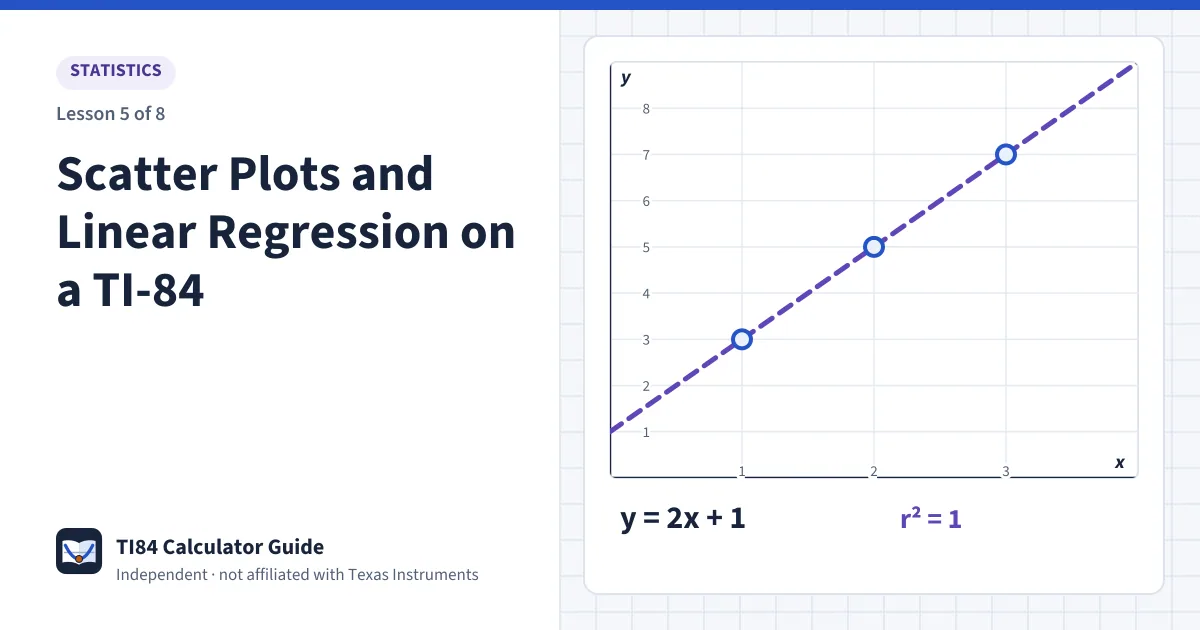
Plot paired data, fit a least-squares line with LinReg(ax+b), turn on r and r², store the equation in Y1, and read residuals before trusting a prediction.
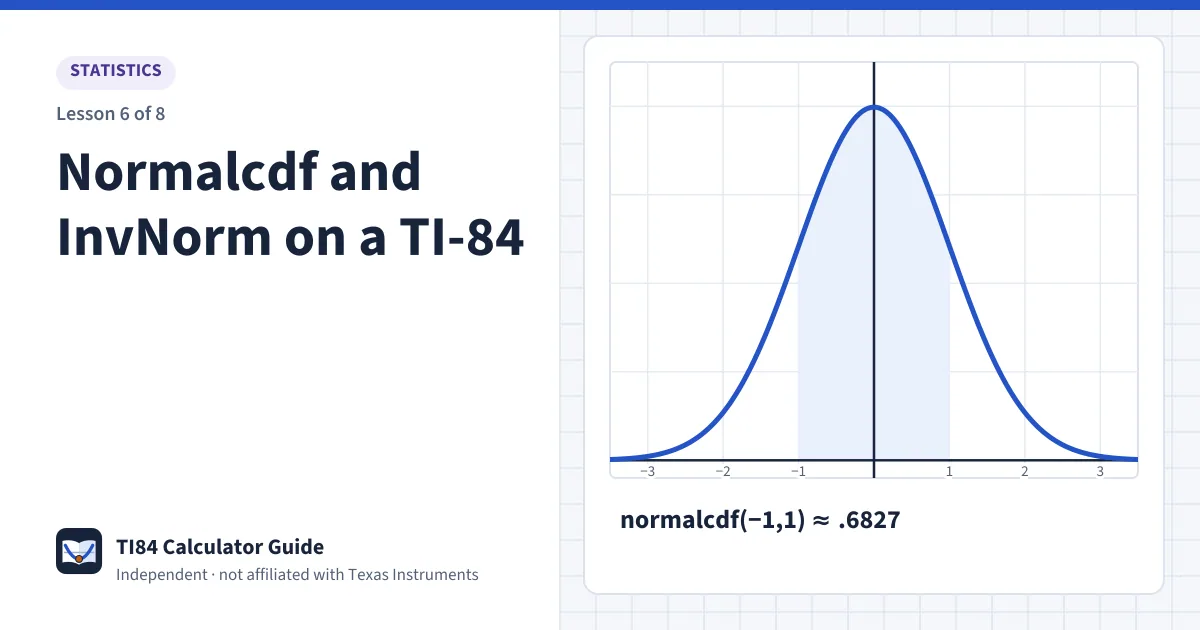
normalcdf gives an area (a probability) between two cutoffs; invNorm does the reverse. Includes argument order, the −1E99 trick for tails, and a worked μ = 65, σ = 5 example.
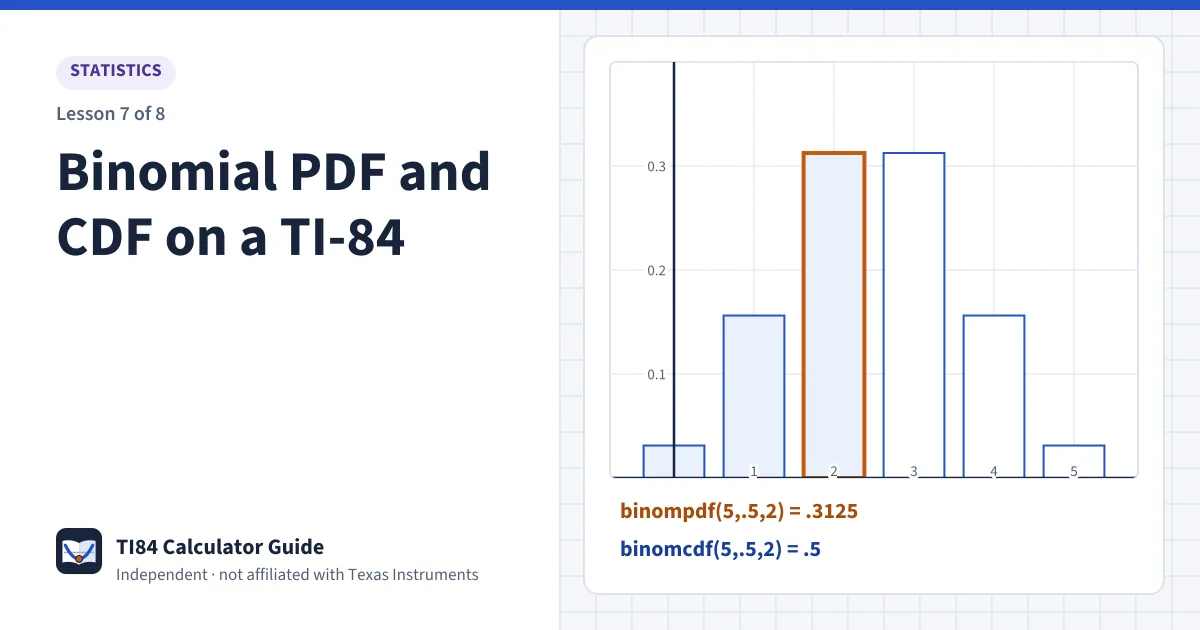
Exactly k versus at most k: binompdf and binomcdf with n = 5 and p = .5, plus how to get “at least”, “more than” and “between” probabilities correctly.
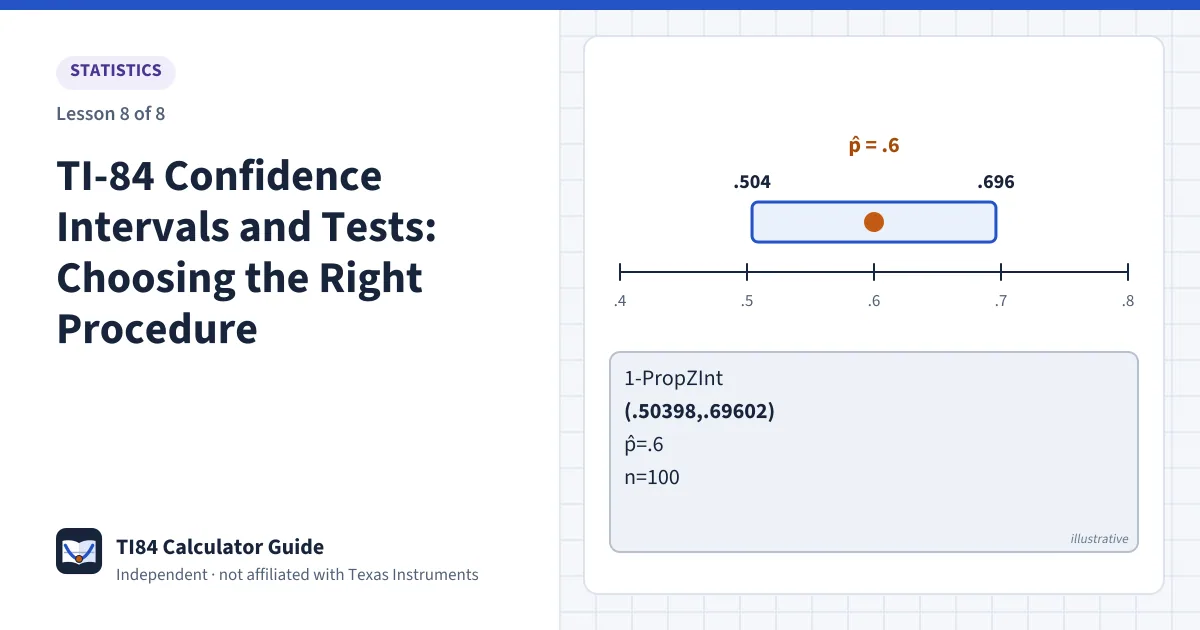
A decision map for STAT TESTS: means or proportions, one or two samples, σ known or not. Worked 1-PropZInt with 60 successes in 100 gives (.504, .696).
Reset, charging, freezes and error messages
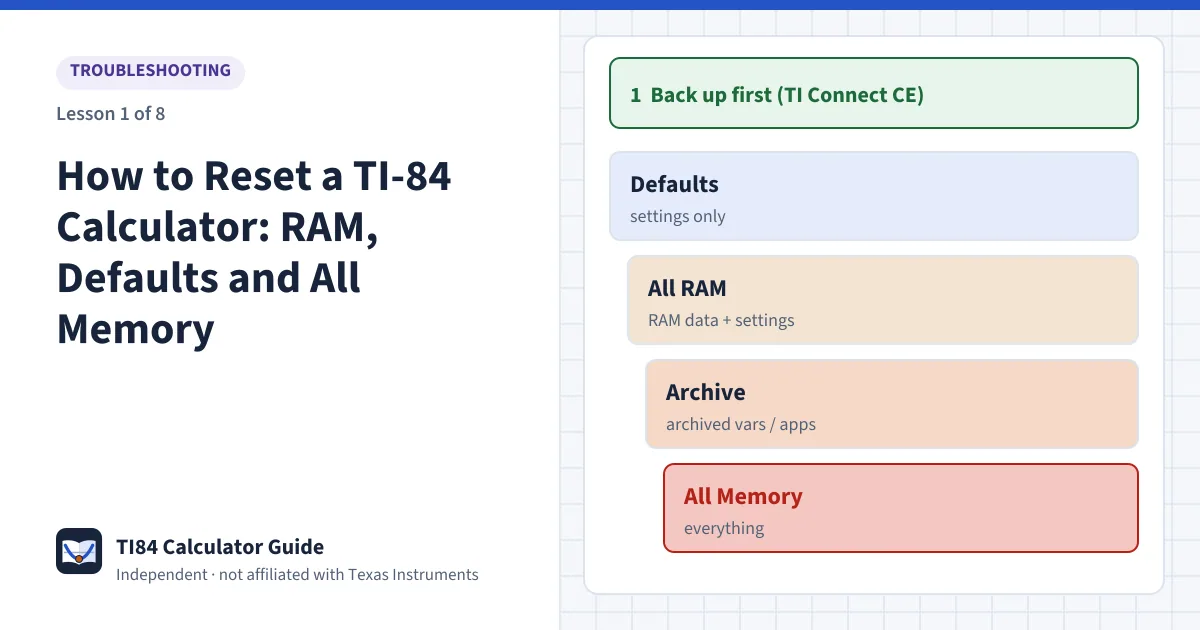
Back up, then pick the smallest reset that fixes the problem. A table shows exactly what Defaults, All RAM, Archive and All Memory remove on TI-84 models.
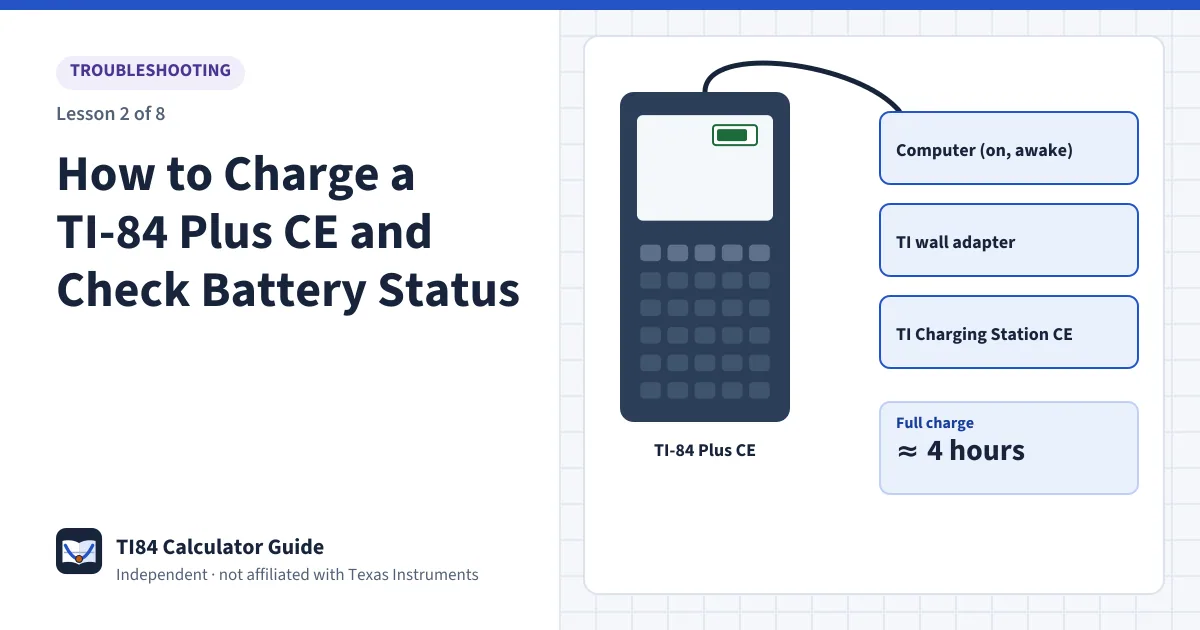
Supported charging sources, about four hours for a full charge, what the battery icon shows, charging without the original adapter, and TI’s steps if it will not charge.
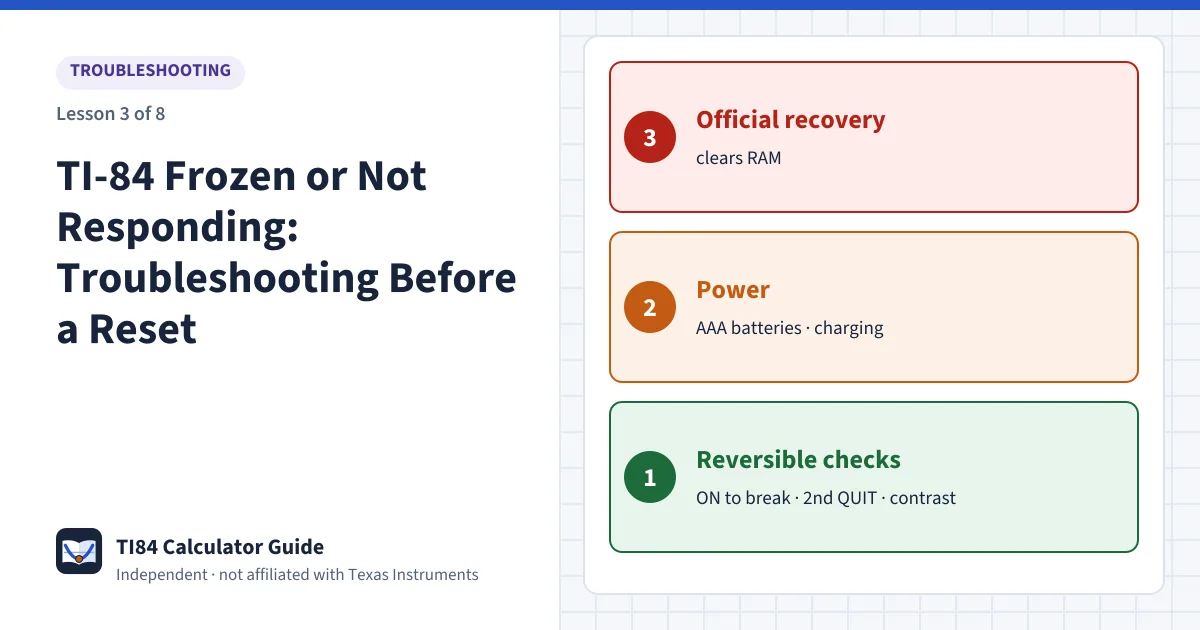
Work from reversible checks to TI’s documented recovery: break a running program with ON, quit menus, check power, then use the CE reset button or the Plus RAM clear.
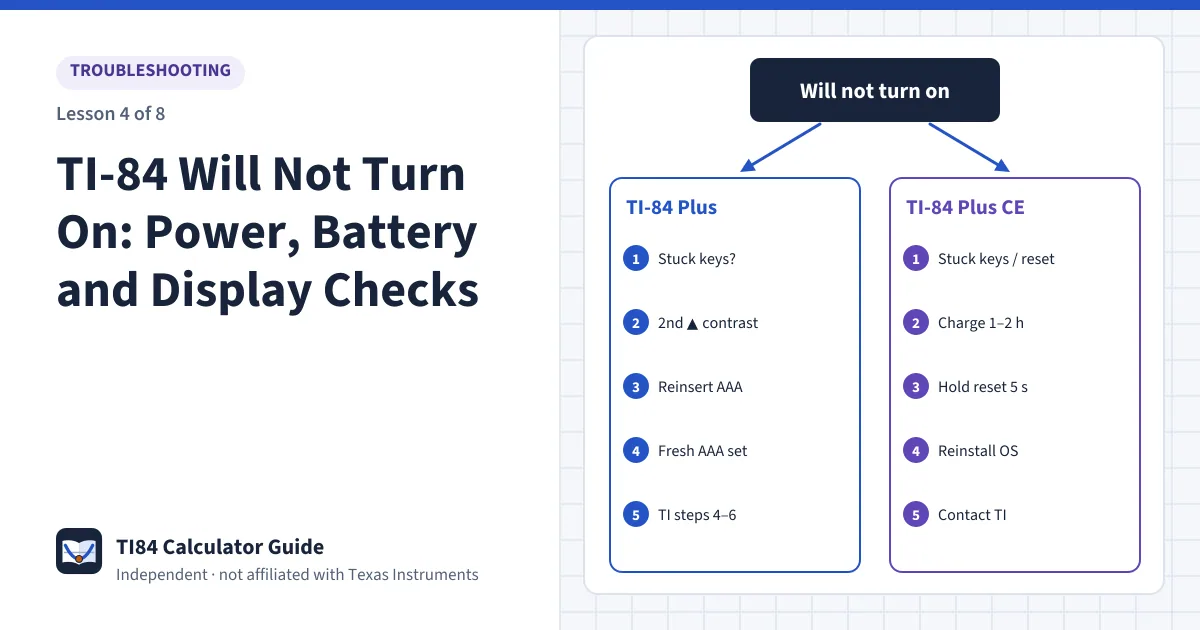
A decision tree for each model: contrast and AAA batteries on the TI-84 Plus; charging, the reset button and OS reinstall on the TI-84 Plus CE — following TI’s own steps.
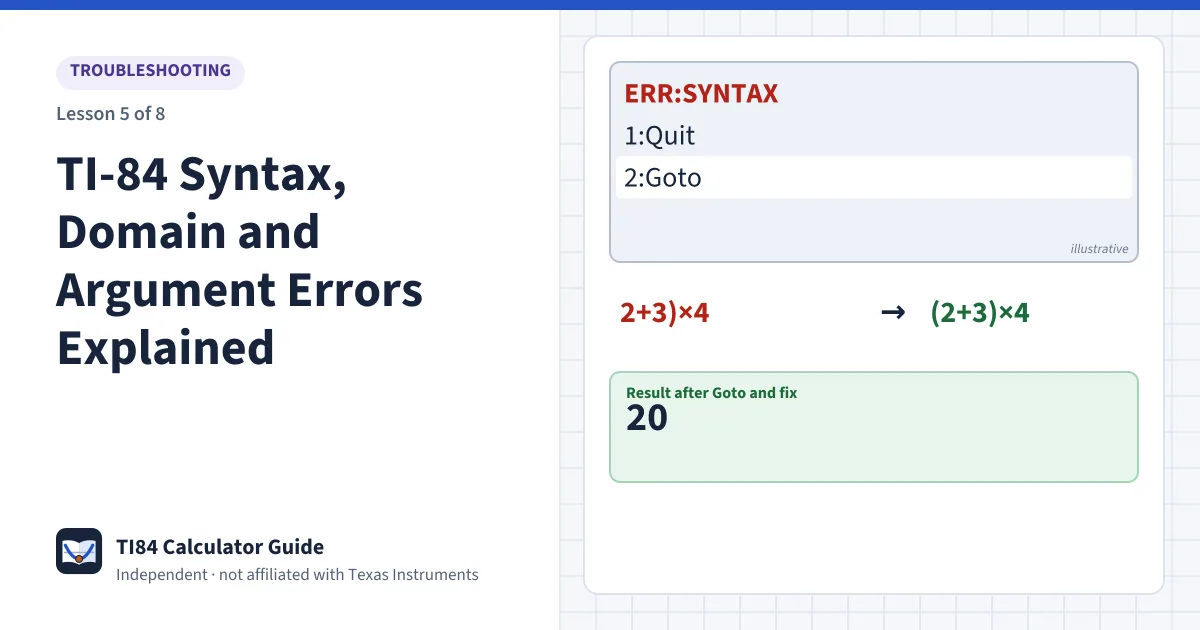
Decode the four most common TI-84 error messages with real examples — a stray bracket, log(0), a missing argument, √(−4) — and use Goto to jump to the problem.
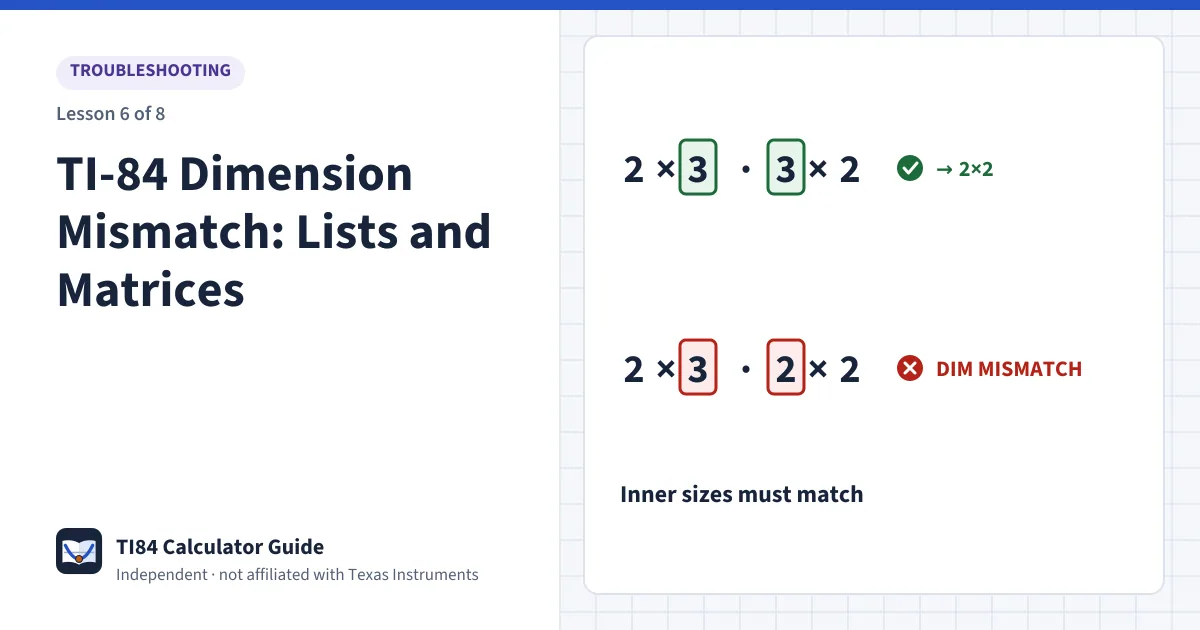
Why a 2×3 times 3×2 product works but 2×3 times 2×2 does not, how unequal L1 and L2 lengths break regressions, and how to repair data without losing pairs.
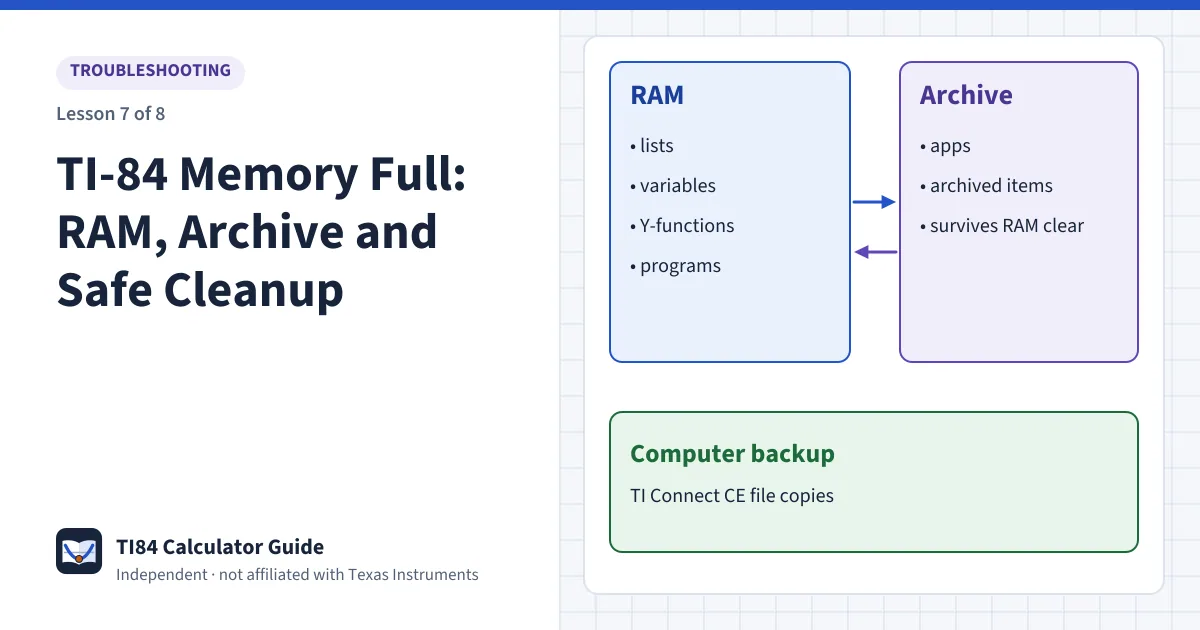
Understand RAM versus archive, see what is using space in Mem Mgmt/Del, back up, then archive or delete selectively — a wipe is the last resort, not the first.
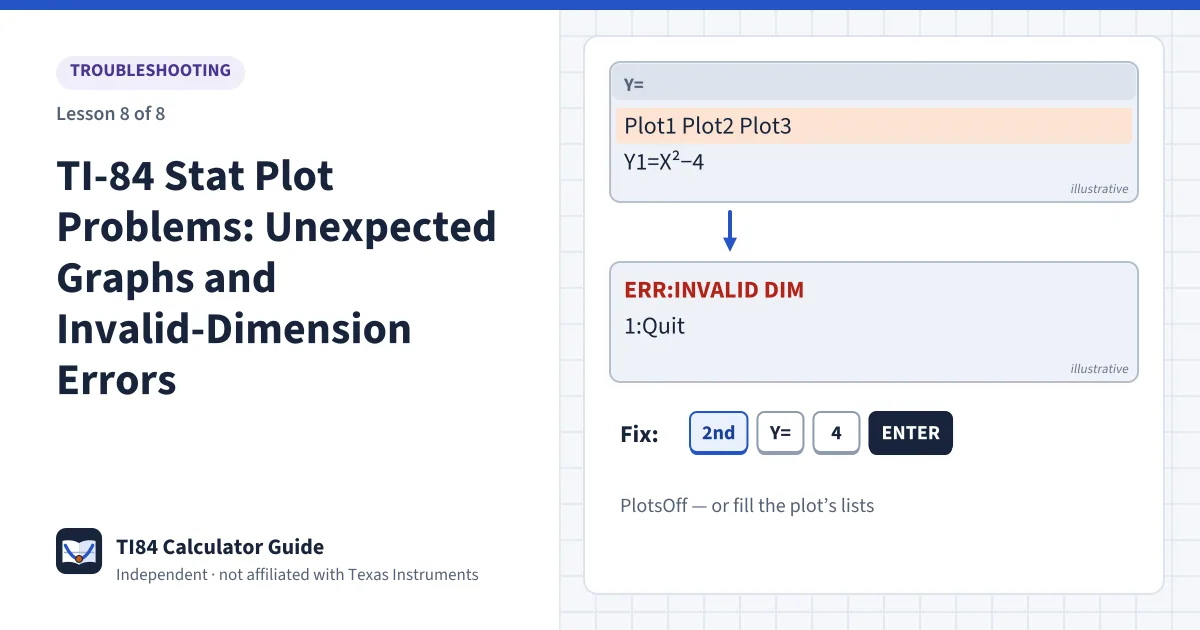
If GRAPH shows INVALID DIM or random points, a Stat Plot is probably still on. Trace the plot settings to their lists, then fix or switch them off.
Plus vs CE, Python, TI Connect CE and exams
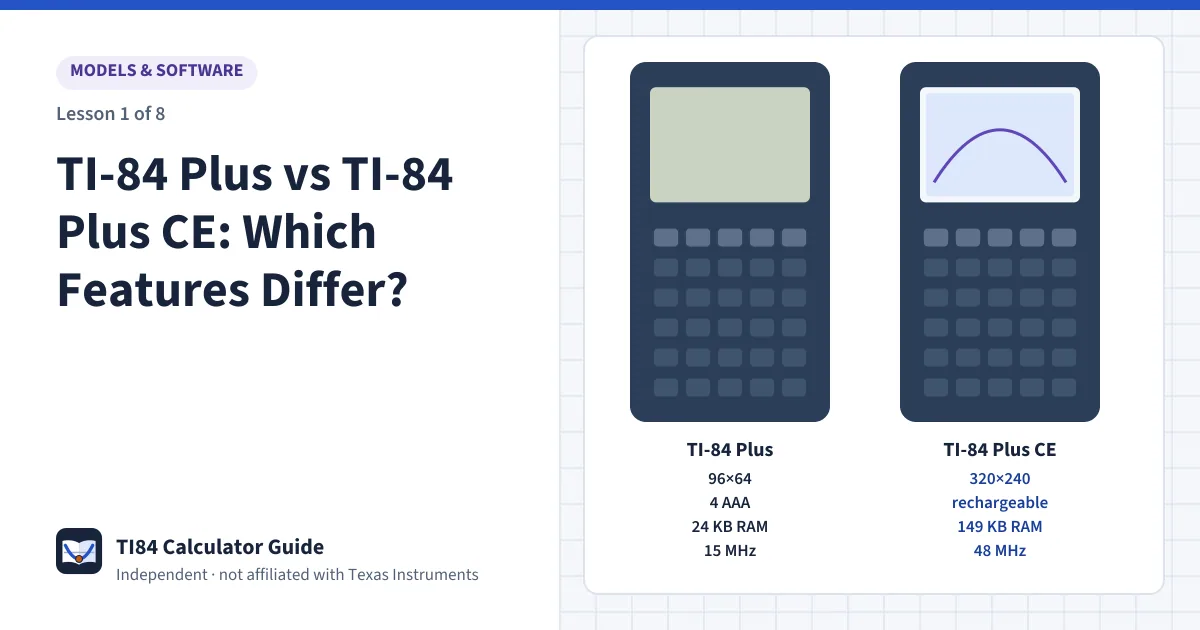
Screen, battery, memory and speed differences from Texas Instruments’ own specification pages, plus the menus and math that work the same on both models.
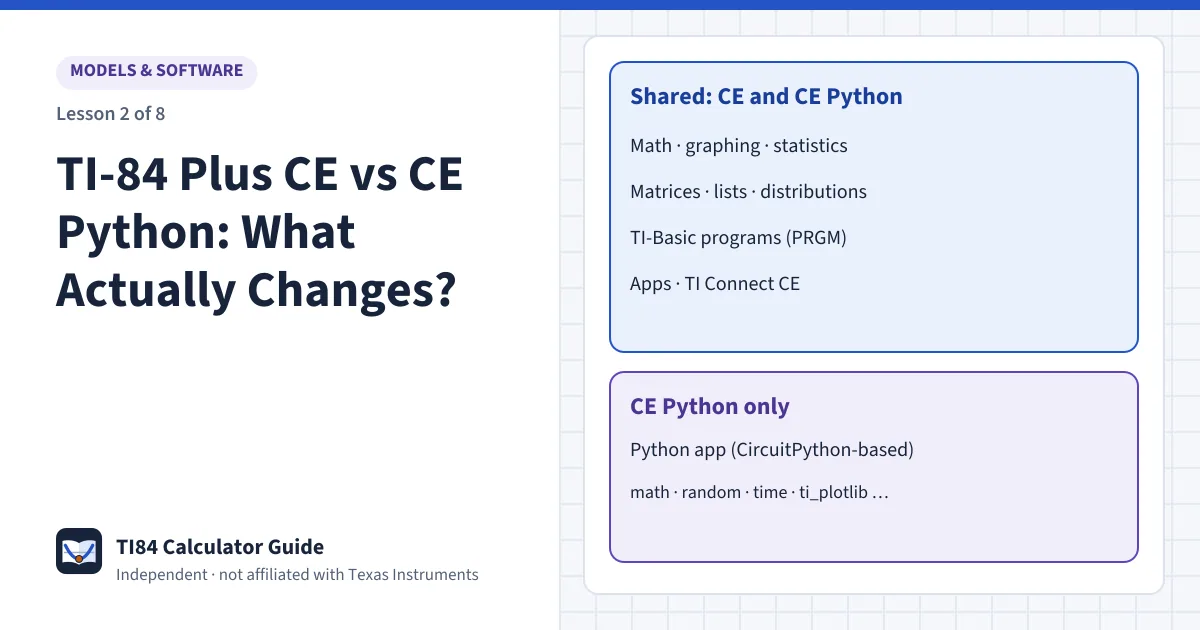
Python programming is the difference: a preinstalled Python app with TI modules. Everything else — math, graphing, statistics and TI-Basic — works as on the CE.
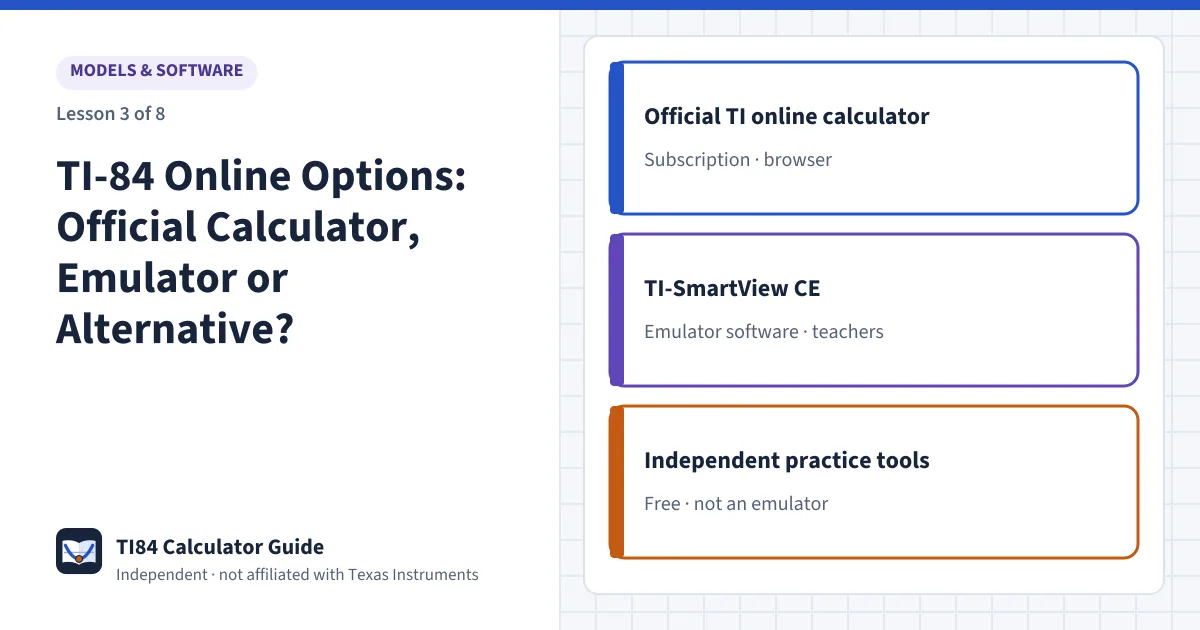
Three honest routes: the official TI-84 Plus CE Online Calculator, TI’s TI-SmartView CE emulator software, and independent browser tools for the math itself — with limits.
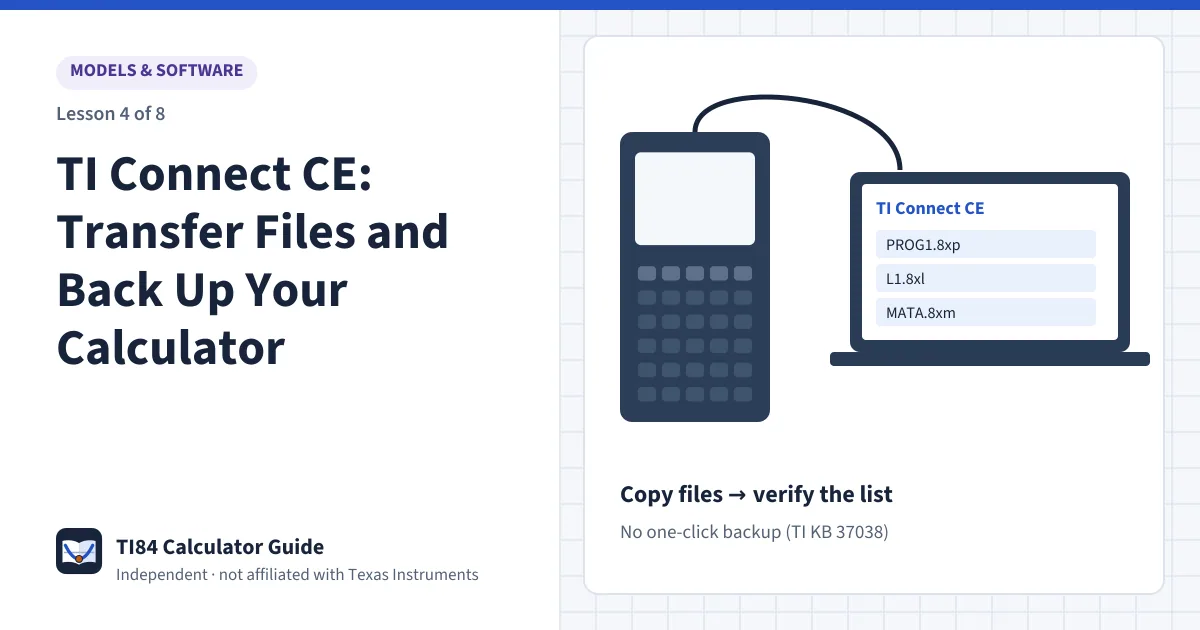
Install TI Connect CE from Texas Instruments, connect by USB, copy selected files to your computer and send them back. Includes what a file copy is — and is not.
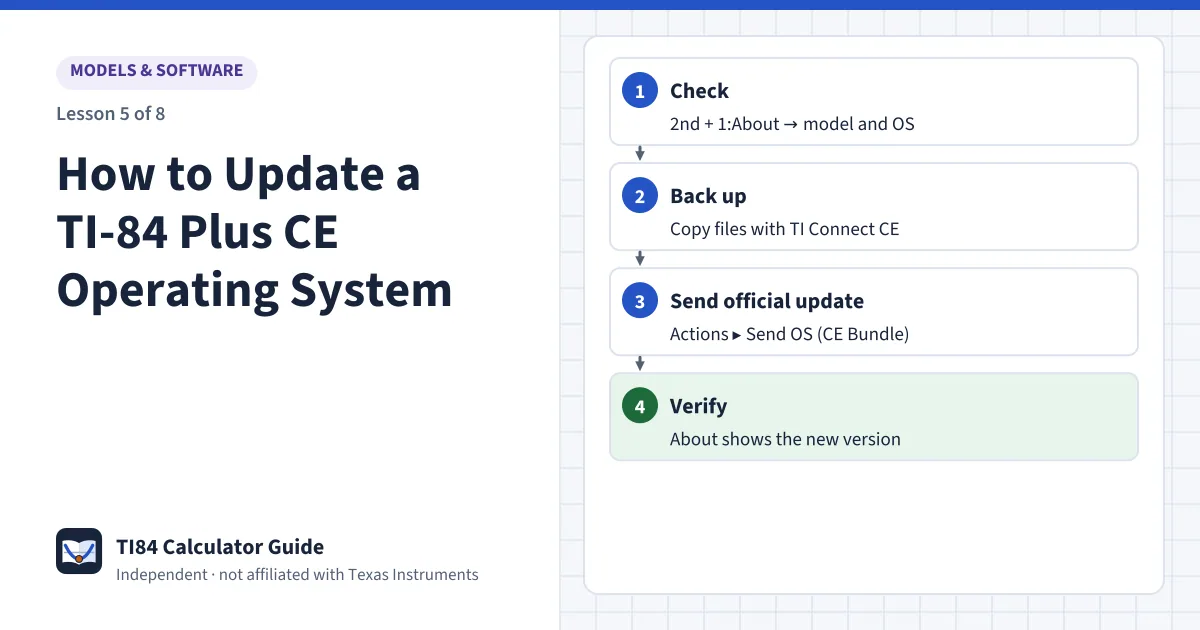
Check the OS in MEM About, back up, download TI’s CE Bundle, send it with TI Connect CE and verify the new version — following TI’s knowledge-base steps.
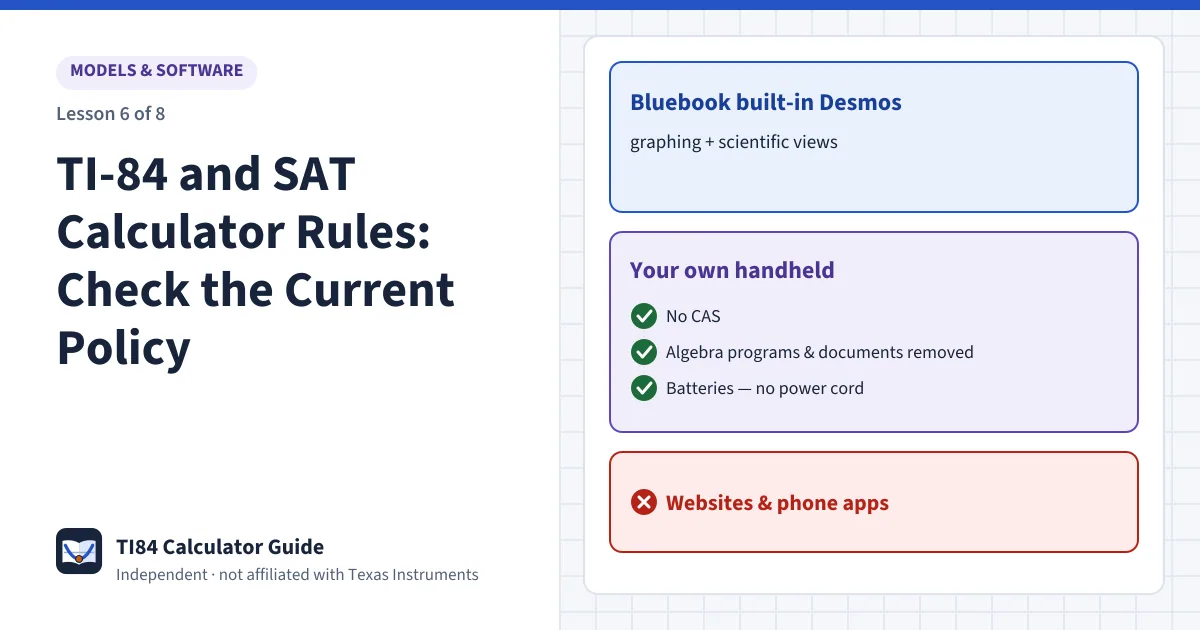
The College Board no longer keeps a permitted-model list. It bans CAS and certain features, requires stored programs and documents to be removed, and offers Desmos in Bluebook.
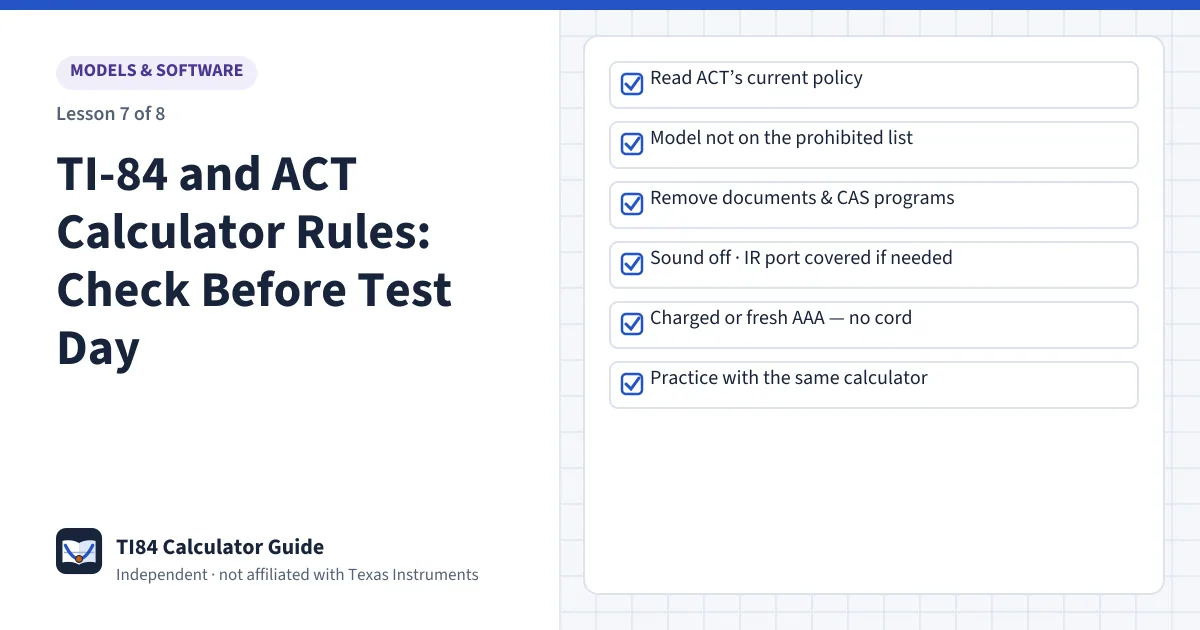
ACT permits four-function, scientific and graphing calculators unless prohibited, bans CAS models and requires certain modifications. A checklist for preparing a TI-84.
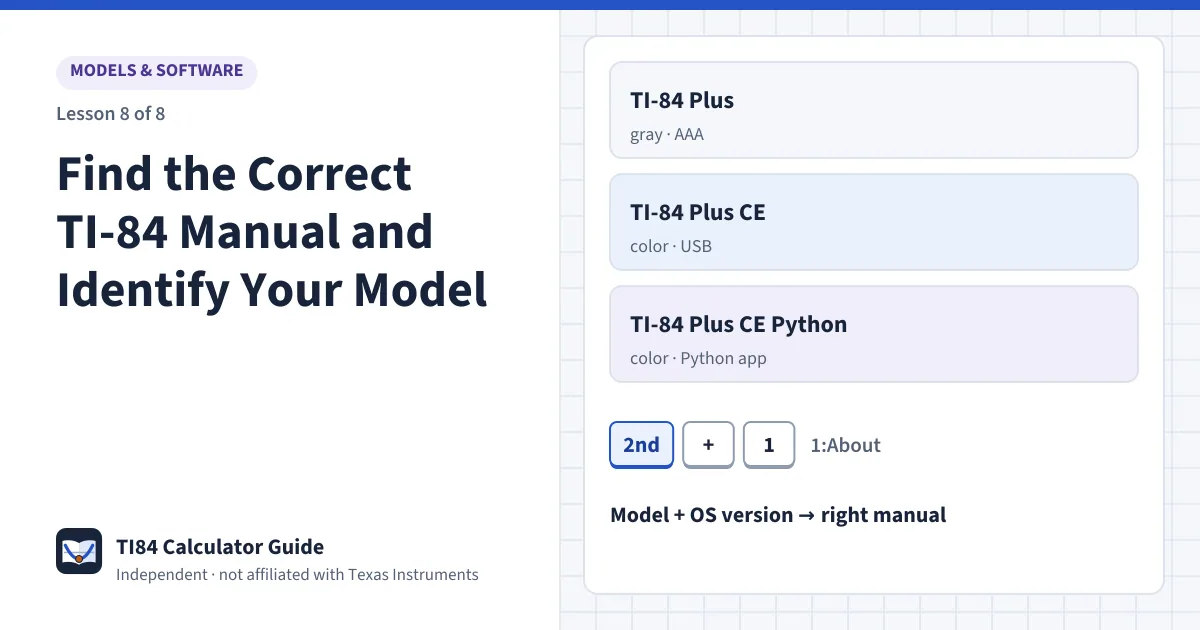
Identify your exact model from the faceplate, screen and power source, confirm the OS version in MEM ▸ About, and open the matching official Texas Instruments guidebook.