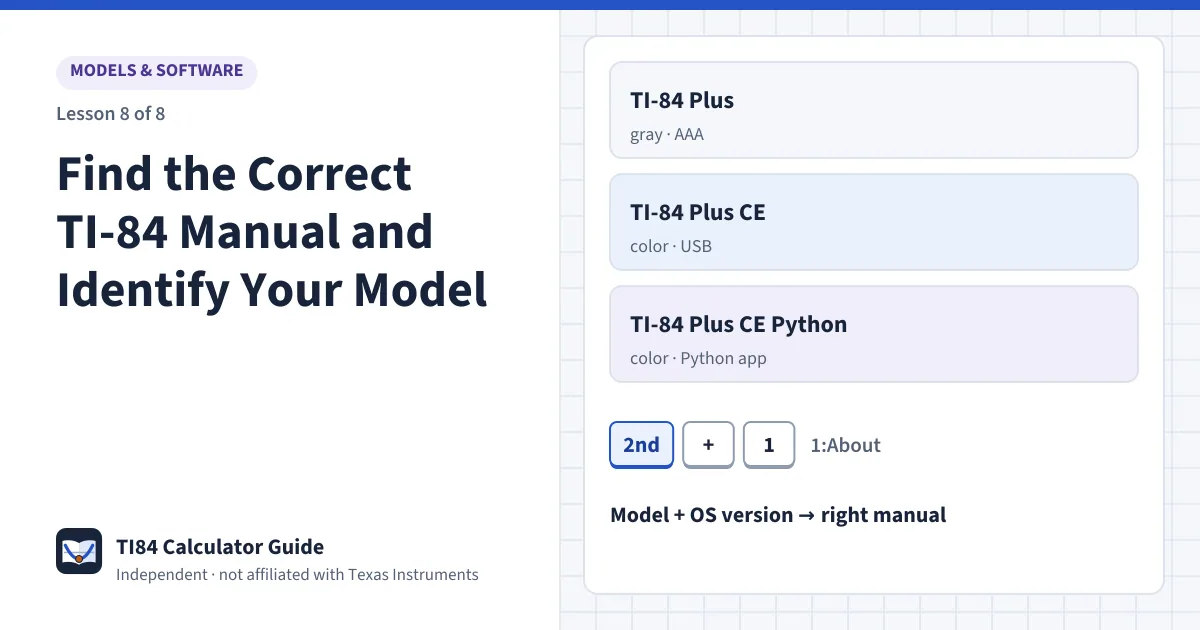
The fix for a TI-84 that will not turn on depends entirely on which model you have, because the TI-84 Plus runs on AAA batteries and the TI-84 Plus CE has a rechargeable battery. Identify the model first — gray screen and battery cover for AAA cells means Plus; color screen and USB charging means CE (how to tell).
First, for every model
TI’s general article (Solution 11900) begins with one check for any graphing calculator: make sure no keys are stuck down below the keypad. A stuck key can stop a calculator from responding.
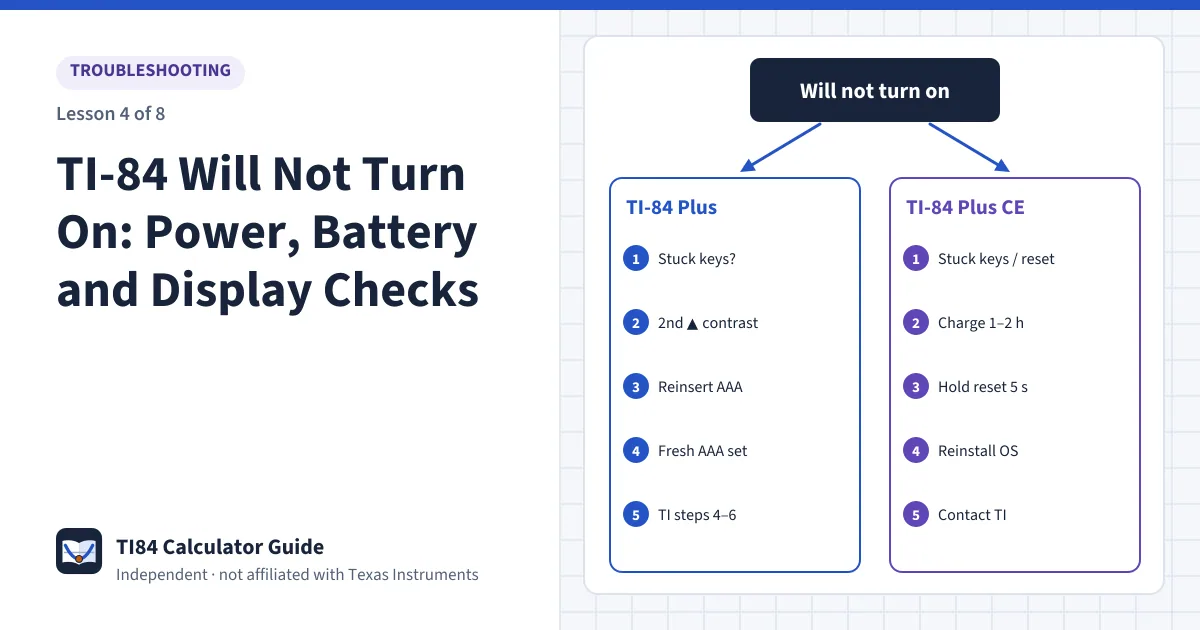
TI-84 Plus and Silver Edition (AAA batteries)
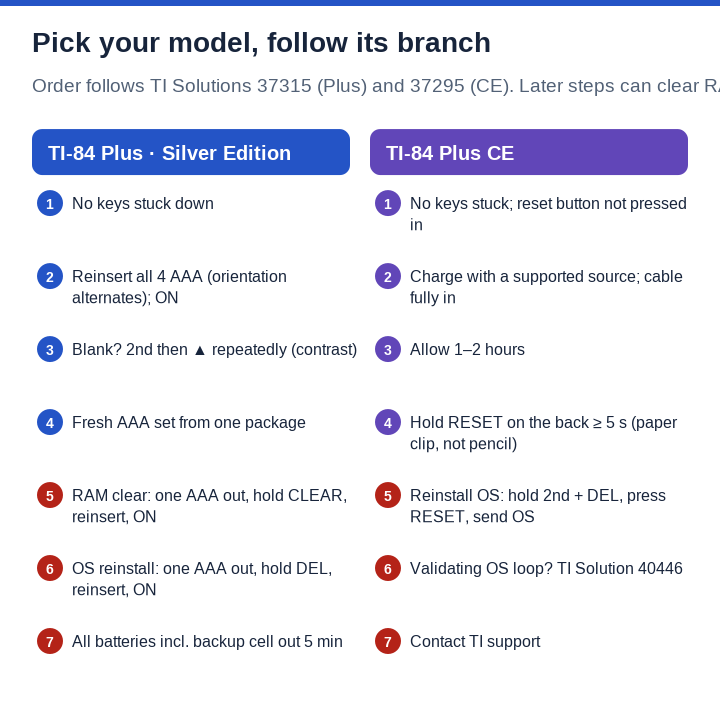
TI’s Solution 37315 gives these steps in order:
- Reinsert the batteries. Remove all four AAA batteries and put them back following the +/− diagrams. TI warns that the orientation alternates in a pattern unlike many products. Press ON.
- Raise the contrast. If the screen is blank, press and release 2nd, then press ▲. Repeat several times. The calculator may be on with contrast set too low — this is the most common “dead” TI-84 Plus.
- Fresh batteries. Insert a new set from the same package, press ON, and adjust contrast again.
- RAM clear. Remove one AAA battery, hold CLEAR, reinsert it and press ON. “RAM Cleared” should appear. This deletes RAM contents.
- Reinstall the operating system. Remove one battery, hold DEL, reinsert it and press ON. The screen asks you to install calculator software; TI’s article links instructions for computer or calculator-to-calculator transfer.
- Remove all batteries, including the round lithium backup cell, for 5 minutes, then reinsert, turn on and adjust contrast.
If none of this works, TI directs you to its support team.
TI-84 Plus CE (rechargeable)
TI’s Solution 37295 (which also covers the TI-84 Plus C Silver Edition) gives this order, summarized:
- Check that no keys are stuck and that the reset button on the back is not pressed in. If it is, free it with a paper clip — TI specifically says not to use something that leaves debris, such as a pencil.
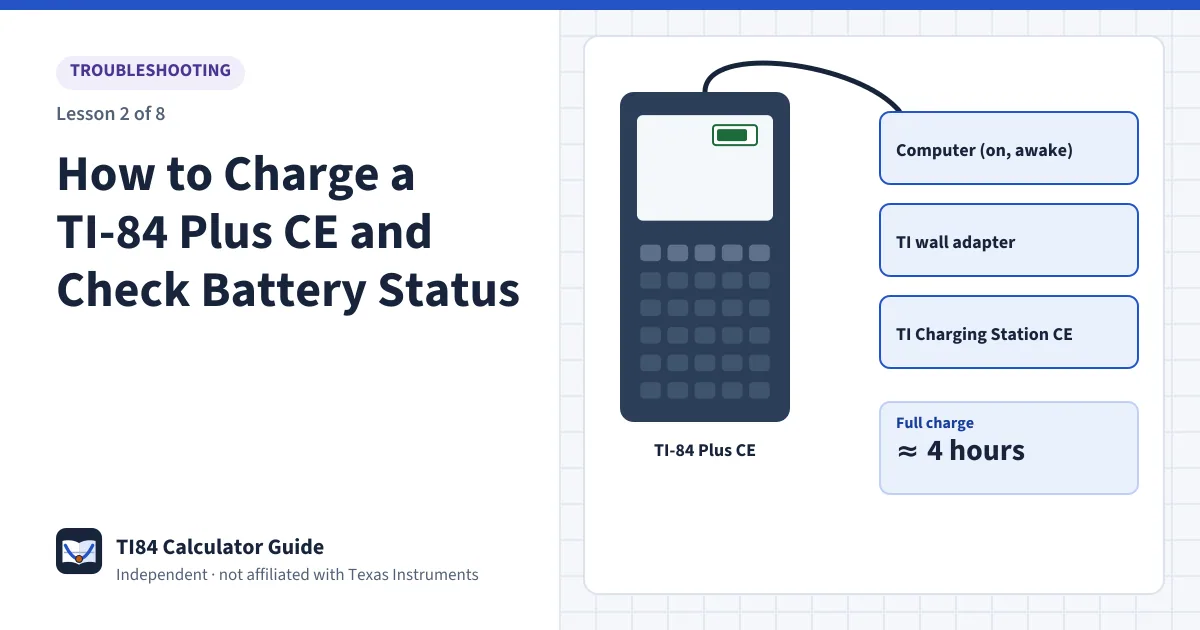
- Charge it with a supported source and check the cable is fully inserted (charging guide). Allow 1–2 hours.
- Hold the reset button on the back for at least 5 seconds.
- As a last step, reinstall the OS: hold 2nd and DEL while pressing and releasing the reset button, then send the OS with TI Connect CE. See updating the CE operating system.
If the screen shows “Validating Operating System…” or flashes white while connected to power, TI has a separate article (Solution 40446).
Is it the display or the power?
- A faint outline of text on a Plus means power is fine and contrast is low.
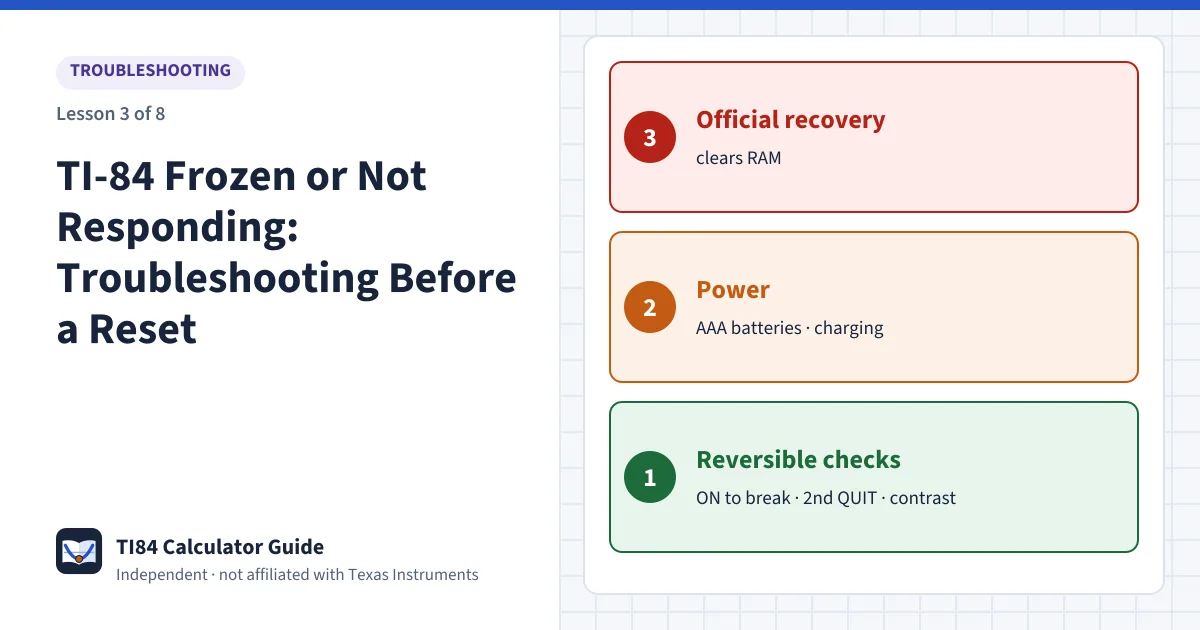
- A lit but black or white CE screen with no response suggests a frozen state rather than no power — see frozen or not responding.
- Nothing at all after charging and resetting suggests a battery or hardware fault; contact TI support.
Common mistakes
- Batteries in a uniform direction on a Plus — follow the diagram.
- Charging from a sleeping laptop on a CE.
- Pressing reset with a pencil — graphite debris can cause new problems.
Sources
- Solution 37315: TI-83 Plus or TI-84 Plus family will not turn on or function properly — Texas Instruments (checked November 23, 2026)
- Solution 37295: TI-84 Plus CE or C Silver Edition will not turn on, charge or function properly — Texas Instruments (checked November 23, 2026)
- Solution 11900: Troubleshooting a TI graphing calculator that will not turn on — Texas Instruments (checked November 23, 2026)
How this guide was made: written by Paul B. Spicer with AI drafting assistance, following our editorial policy. Key sequences and menu names were checked against the Texas Instruments documents listed above; numeric examples are recomputed by automated tests. Diagrams are original illustrations, not screenshots. TI84 Calculator Guide is independently operated and is not affiliated with, sponsored by or endorsed by Texas Instruments. TI-84 Plus, TI-84 Plus CE and related names are used only to describe the calculators our guides cover. Found a mistake? Send a correction.