
TI’s online TI-84 Plus CE
Texas Instruments sells a browser version with the CE’s interface for Chromebook, Windows and macOS. It is a subscription and has no test mode.
TI’s product page (external site)Type at least two letters.
Learn to use a TI-84 Plus or TI-84 Plus CE one task at a time — graphing, equations, statistics, resets and exam rules — with key sequences checked against Texas Instruments’ own guides. If you need a calculator in your browser right now, we explain the official online option and offer free practice tools that do the same mathematics, clearly labeled as independent rather than an emulator.
Independent site: not affiliated with, sponsored by or endorsed by Texas Instruments.
Texas Instruments sells a browser version with the CE’s interface for Chromebook, Windows and macOS. It is a subscription and has no test mode.
TI’s product page (external site)Six browser tools for graphs, calculations, quadratics, statistics, regression and matrices. Same mathematics, no TI menus — and no sign-in.
Open the practice tools48 guides for the handheld you use in class: exact keys, a worked example and the mistakes to avoid, in six learning hubs.
Browse all guidesMore detail on each route, including TI-SmartView CE for teachers, is in TI-84 online options.
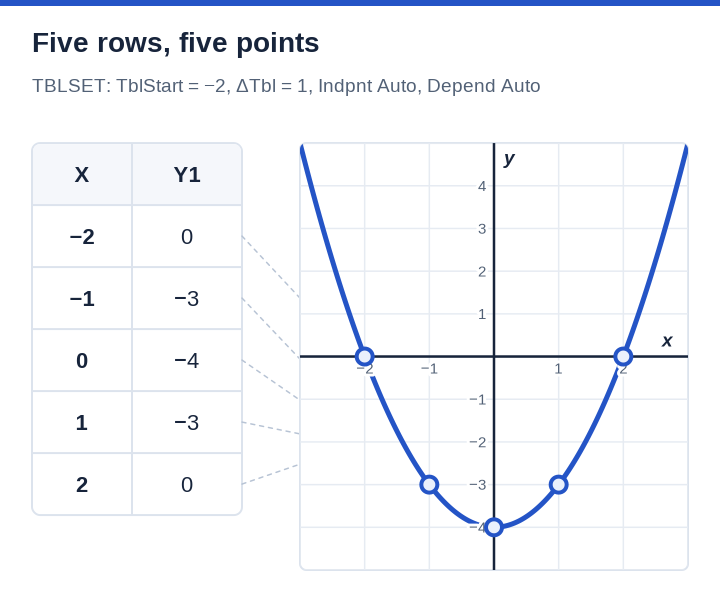
This is our independent graphing practice tool, using the same engine as the full graphing calculator. It already shows y = x² − 4: the curve crosses the x-axis at −2 and 2 and turns at (0, −4). Change the function, drag the graph or open the table. It does not imitate TI-84 keys — the graphing guide shows those.
x^2-4, 2x+1, sqrt(x), abs(x-2)-1, sin(x), 1/x, 2^x, log(x) or ln(x). A leading y = is optional.2x, 3(x+1), (x+1)(x-1), 2pi. Use brackets after every function name: sin(x).-x^2 means −(x²). Powers group right to left: 2^3^2 = 29.log is base 10; ln is base e. pi or π and e are constants.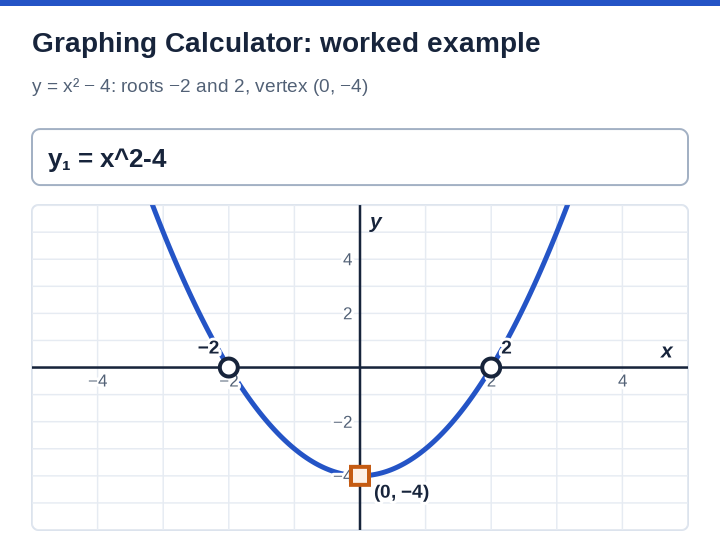
Loading the interactive graph… If nothing appears, JavaScript may be disabled; the worked examples below still show correct results.
Roots and intersections are numeric estimates found within the visible window (rounded to 6 decimal places). Points outside the window are not searched. Zoom out or move the window to look elsewhere.
Every lesson and tool follows the same pattern, so you can check yourself at each stage:
Y1=X²−4 in FUNCTION mode.That last step matters. A TI-84 gives numerical answers, and a missing bracket or wrong angle mode produces a confident wrong number. Learning to check is what makes the calculator trustworthy in a test.
The TI-84 family are graphing calculators made by Texas Instruments and widely used in US middle school, high school and early college math. Beyond arithmetic, a TI-84 graphs functions and reads their zeros, intersections and turning points; stores and analyzes lists of data; fits regression lines; computes normal and binomial probabilities and confidence intervals; works with matrices; and estimates derivatives and integrals numerically. It runs programs and apps, and the CE Python edition adds Python.
What it does not do is symbolic algebra: it will not simplify or rearrange an expression for you. That is one reason it is accepted on tests where computer algebra systems are not — and why our lessons always pair a calculator answer with a way to check it.
Our practice tools overlap with that mathematics but not with the device. They have no programs, apps, Stat Plots or exam mode, and they present results their own way. Use them to understand and verify; use the guides for the keystrokes on your actual calculator.
| TI-84 Plus | TI-84 Plus CE | |
|---|---|---|
| Screen | Gray-scale, 96 × 64 | Color, 320 × 240, backlit |
| Power | 4 AAA batteries | Rechargeable by USB |
| Speed / RAM | 15 MHz / 24 KB | 48 MHz / 149 KB |
| Python | No | CE Python edition only |
The keys and core math are shared, so most lessons work on both. Read the TI-84 Plus or TI-84 Plus CE overview, or the full Plus vs CE comparison.
Each hub has eight lessons in a suggested order. Start with the first lesson shown, or jump to the skill you need.
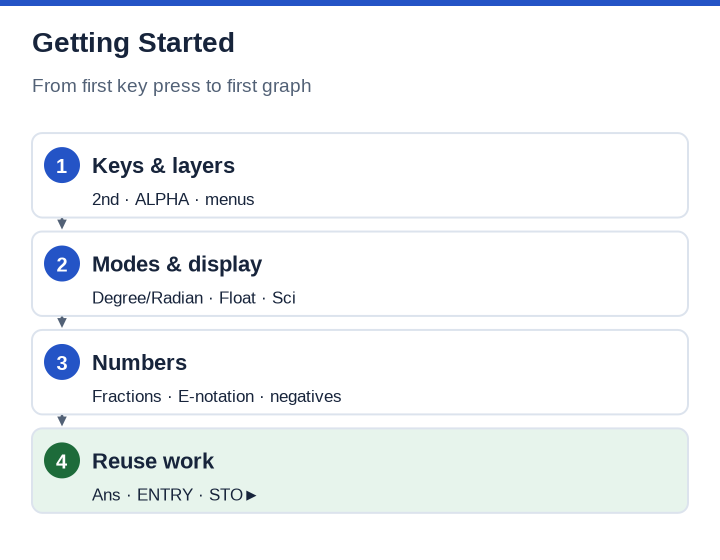
Keys, modes, fractions and the home screen.
First step: How to Use a TI-84 Calculator: A First-Session Guide
Learn QUIT (2nd MODE) first — it closes any menu.
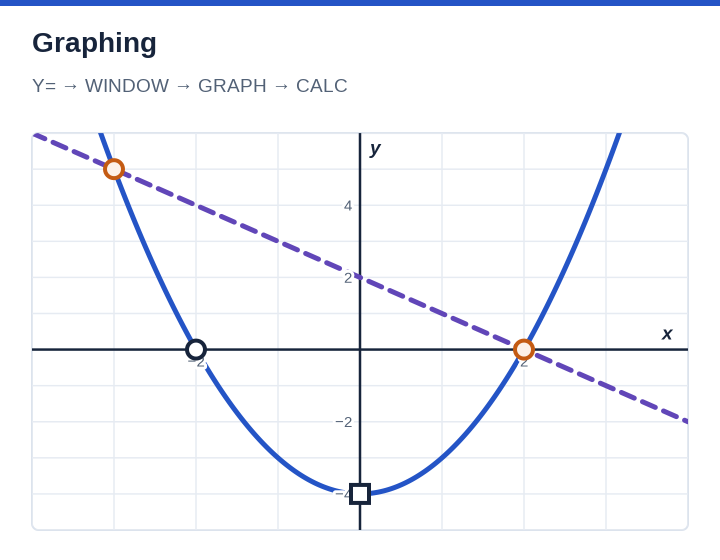
Y=, window, table, zeros and intersections.
First step: How to Graph Functions on a TI-84
Clear old Y= lines and Stat Plots before you press GRAPH.
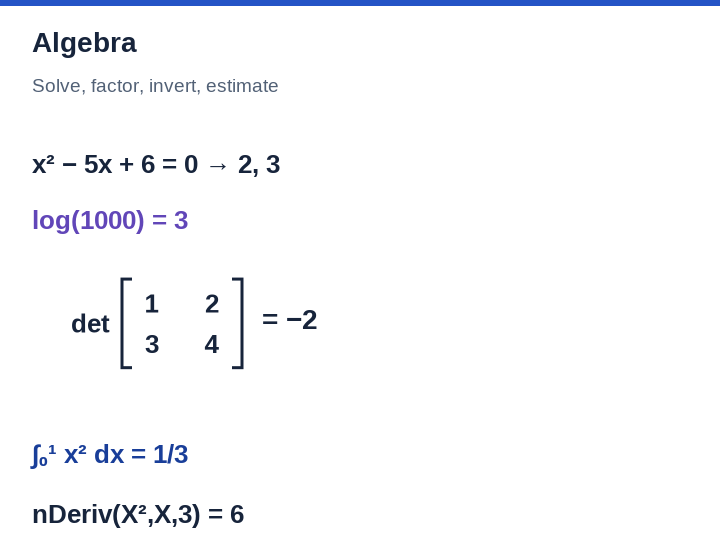
Solving, quadratics, matrices, logs and calculus.
First step: Solve Equations on a TI-84: Numeric Solver and Checks
Treat solver answers as numbers to check by substitution.
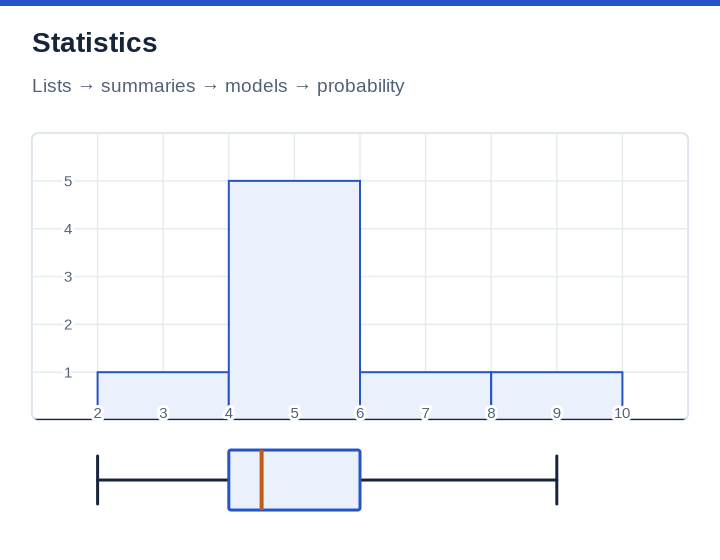
Lists, 1-Var Stats, plots, regression and probability.
First step: Enter and Edit Statistical Lists on a TI-84
Keep x and y in the same rows of L1 and L2.
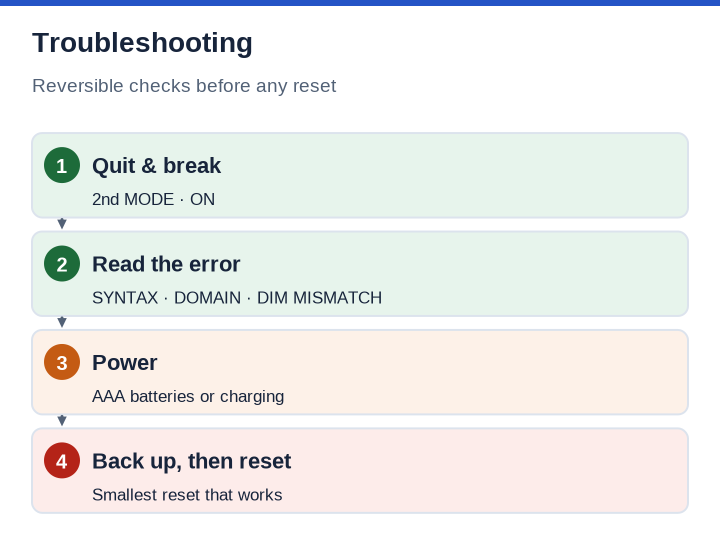
Reset, charging, freezes and error messages.
First step: How to Reset a TI-84 Calculator: RAM, Defaults and All Memory
Back up before any reset; try QUIT and ON first.
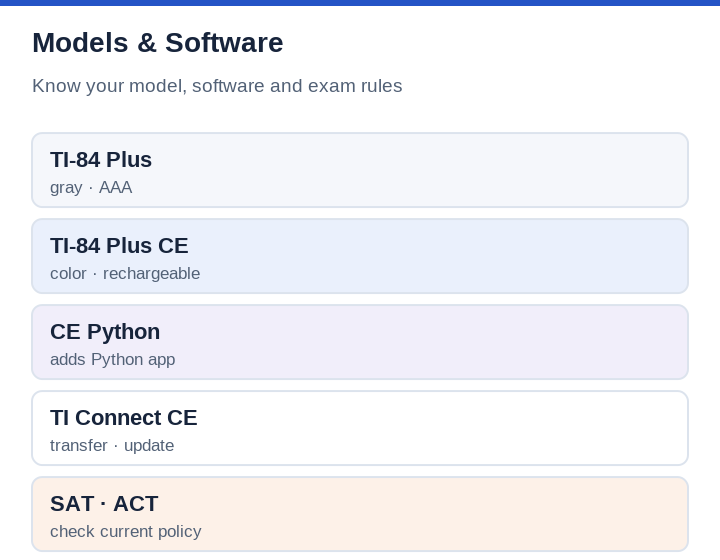
Plus vs CE, Python, TI Connect CE and exams.
First step: TI-84 Plus vs TI-84 Plus CE: Which Features Differ?
Press 2nd + then 1:About to see your model and OS.
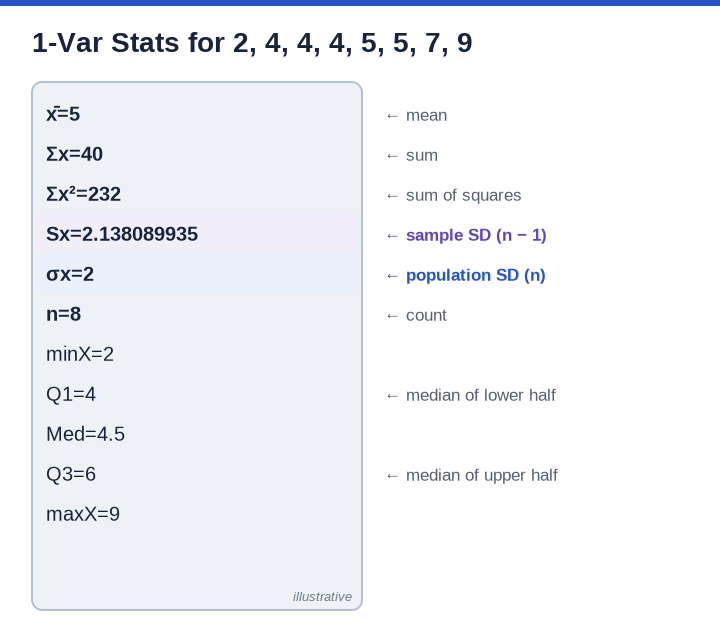
| n | Mean | Median | Q1 | Q3 | σx | Sx |
|---|---|---|---|---|---|---|
| 8 | 5 | 4.5 | 4 | 6 | 2 | 2.138089935 |
Free, in your browser, with the conventions printed on each page. Every example value below is produced by the tool’s own code and covered by automated tests.
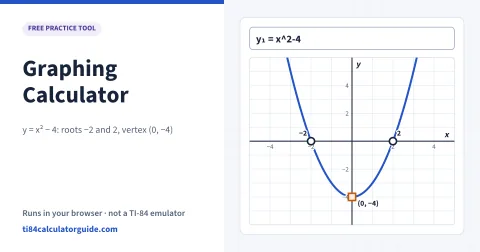
Up to six y = f(x) functions · Degree and radian modes · Roots, intersections and y-intercept within the window
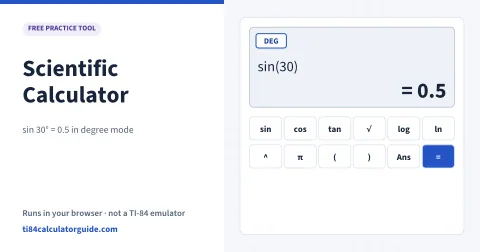
Degree and radian modes · Powers, roots, log, ln, factorial · E notation
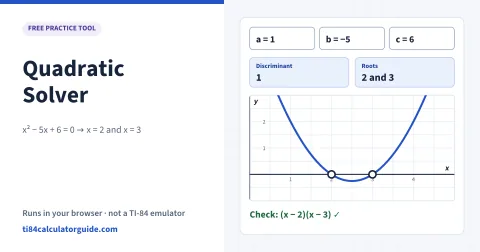
Discriminant and root classification · Real and complex roots · Vertex and factorization
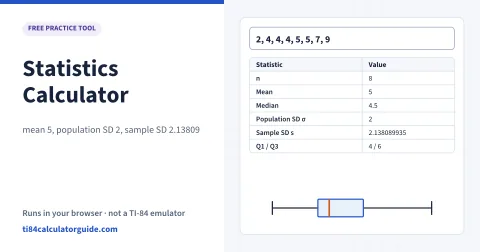
Mean, median, quartiles, IQR · Sample and population SD · Histogram and box plot
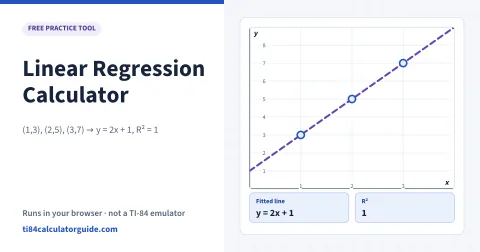
Least-squares slope and intercept · r and R² · Residual table and CSV
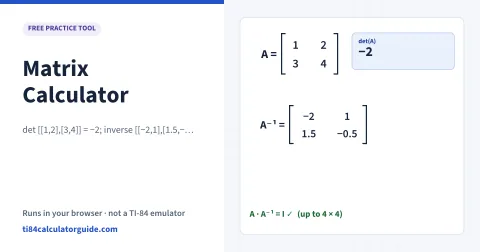
Determinant and inverse · Transpose · Add, subtract, multiply
There is no blanket “exam approved” badge for the TI-84. The College Board’s SAT policy and ACT’s policy both allow graphing calculators without computer algebra features, name prohibited models instead of approved ones, and set rules on stored programs and documents, power cords and other features. The SAT’s Bluebook app also has a built-in Desmos calculator. Our SAT and ACT summaries are dated and link to the providers’ pages; check those again close to your test. Independent websites, including ours, cannot be used during these exams.
Texas Instruments’ own browser version, the TI-84 Plus CE Online Calculator, is a paid subscription (TI also includes an online license with retail purchases of the CE). Free independent tools — including ours — do the same mathematics in a browser but are not TI-84 emulators and do not copy its menus.
No. TI84 Calculator Guide is independently operated and is not affiliated with, sponsored by or endorsed by Texas Instruments. We link to TI’s official manuals and support pages as sources.
Yes, for nearly every task: keys and menus are largely shared. Each guide names the models and documents it was checked against and points out differences such as MathPrint templates, Stat Wizards and charging.
Both policies judge calculators by features and stored content rather than approving the TI-84 by name. Read our date-stamped SAT and ACT summaries and then the providers’ current pages before test day.
Press ON to stop a running program, then 2nd MODE to quit. Only move on to TI’s RAM-clearing reset steps after the reversible checks — our troubleshooting guide lists them in order.
Key sequences and menu names come from Texas Instruments guidebooks, eGuides and knowledge-base articles, and each guide lists its sources and the date we checked them. Worked numbers are recomputed by automated tests, and diagrams are original illustrations rather than screenshots. Pages are written by Paul B. Spicer with AI drafting assistance and reviewed against the sources. Read the editorial policy or report a correction.
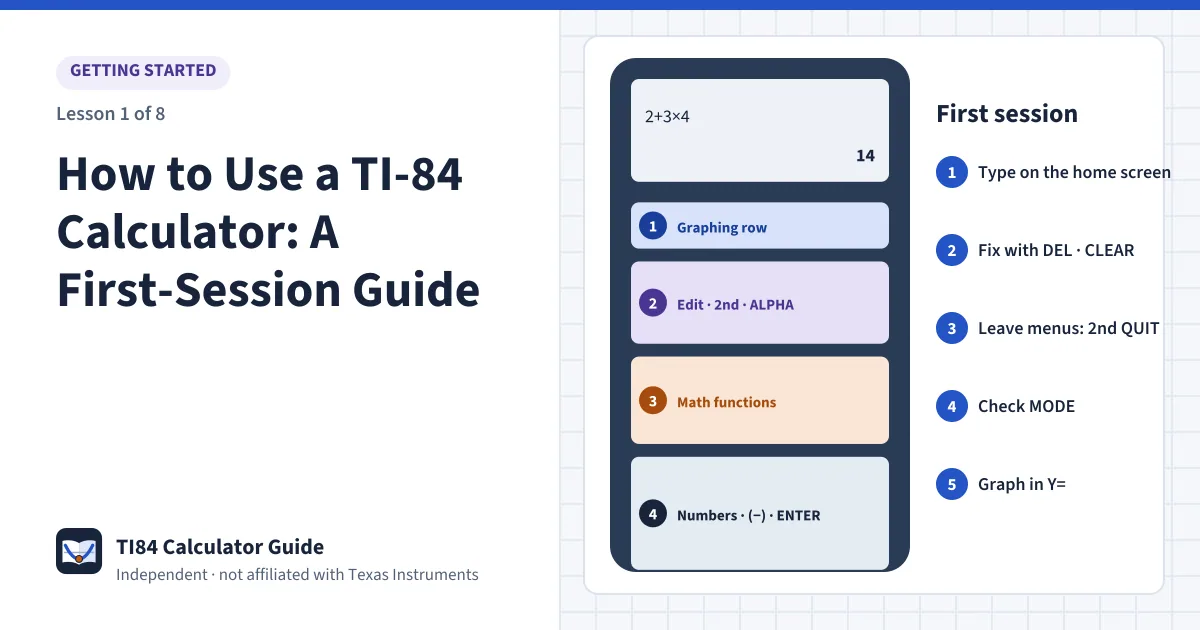
Identify your model, learn the home screen, correct a typo without starting over, check MODE, then graph y = x² − 4 and read one value from it.
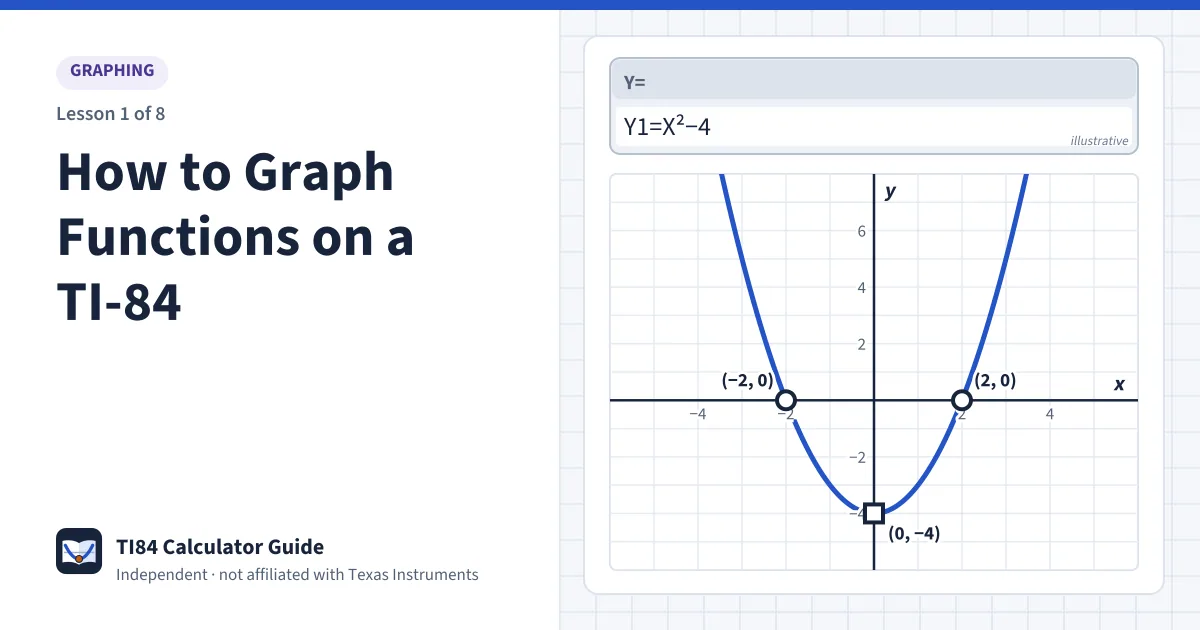
The complete Y= to GRAPH workflow: clear conflicting equations and stat plots, enter y = x² − 4, set a standard window, then trace roots and the vertex.
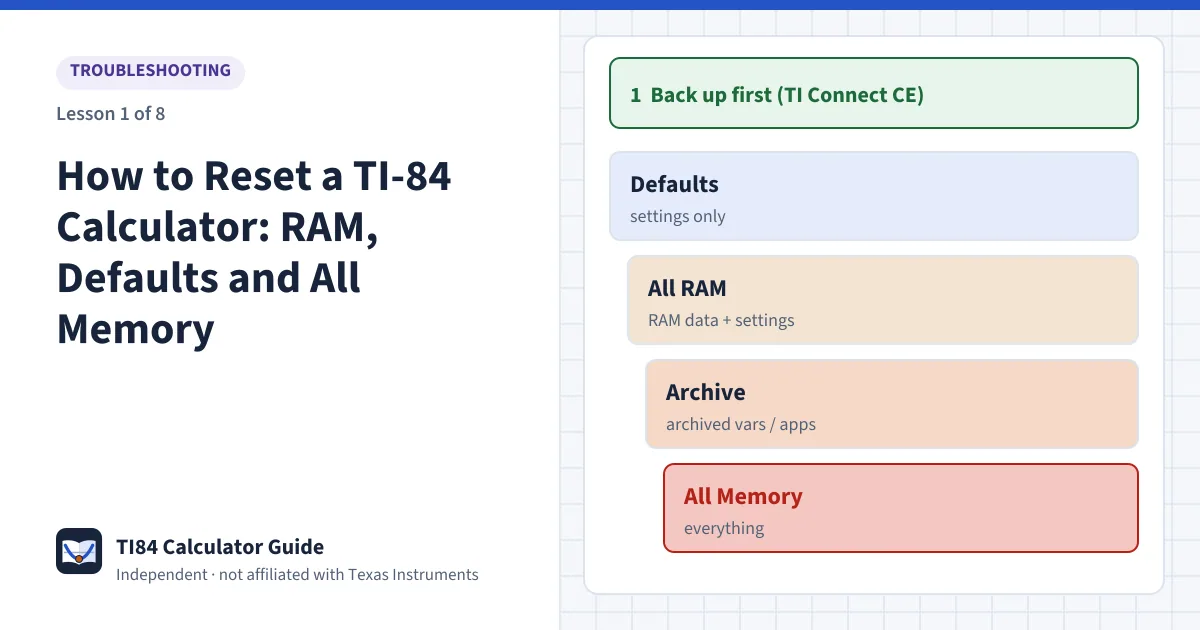
Back up, then pick the smallest reset that fixes the problem. A table shows exactly what Defaults, All RAM, Archive and All Memory remove on TI-84 models.