A TI-84 that ignores your keys is usually busy, stuck in a menu or low on power — not broken. Work through these steps in order. The early ones change nothing; only the later ones clear memory.
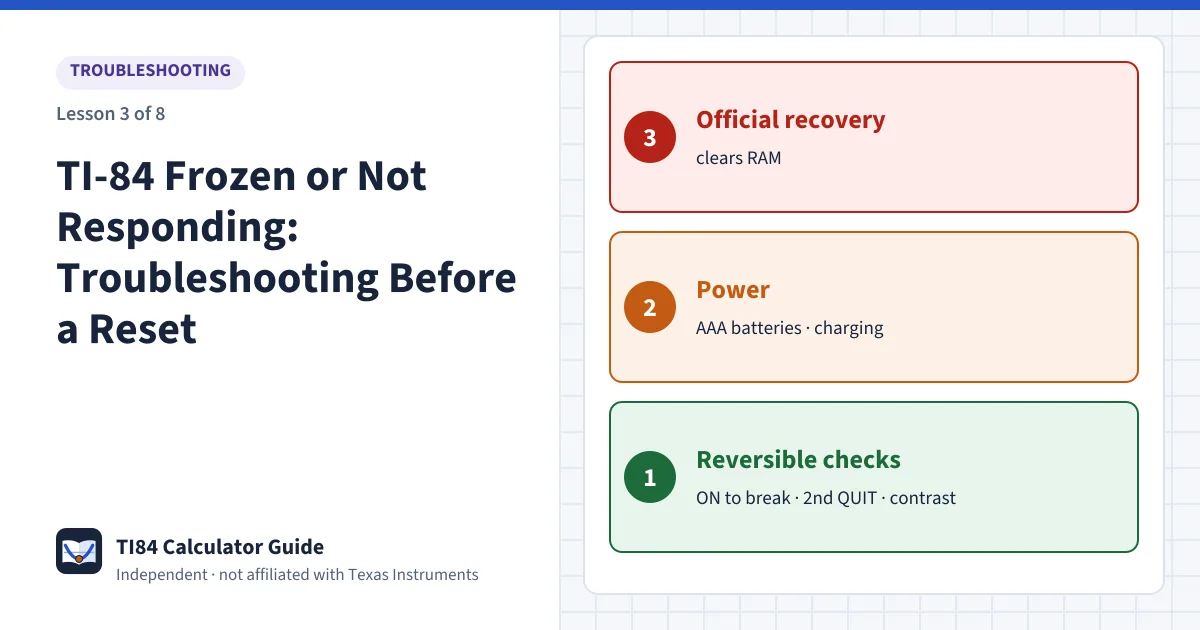
Symptom → reversible checks → official recovery
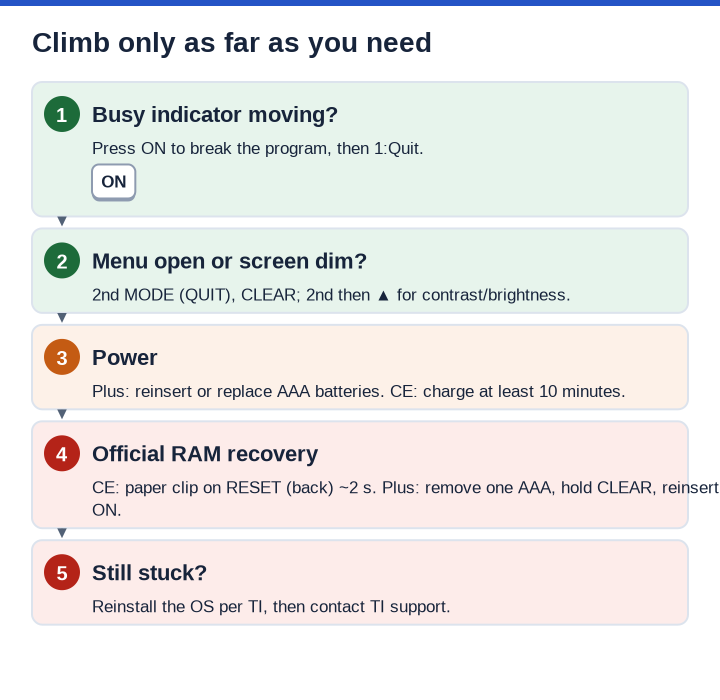
Tier 1: reversible checks (no data lost)
- Is something running? A moving busy indicator in the top-right corner means a program or calculation is running. Press ON. The TI-84 Plus guidebook describes ON as the way to break a running program; you will see ERR:BREAK. Choose 1:Quit.
- Is a menu open? Press 2nd MODE (QUIT), then CLEAR.
- Is the graph just slow? A complicated function, many Y= entries or tiny Tstep values can take a long time. Wait, or press ON to interrupt, then simplify.
- Is the screen just dim? Press 2nd then ▲ several times (contrast on the Plus, brightness on the CE). On the CE, any key wakes a screen that auto-dimmed.
Tier 2: power
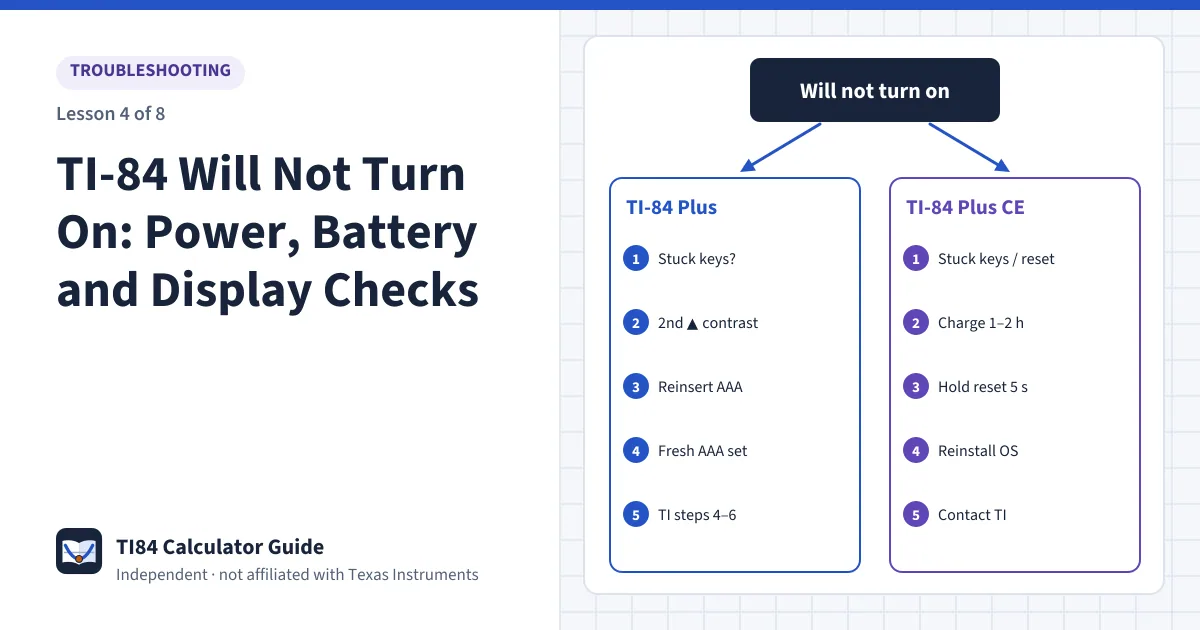
- TI-84 Plus: weak AAA batteries cause erratic behavior. TI’s Solution 37315 starts by removing all AAA batteries, reinserting them carefully following the +/− marks (TI warns the orientation alternates), and pressing ON. Then try a fresh set from the same package.
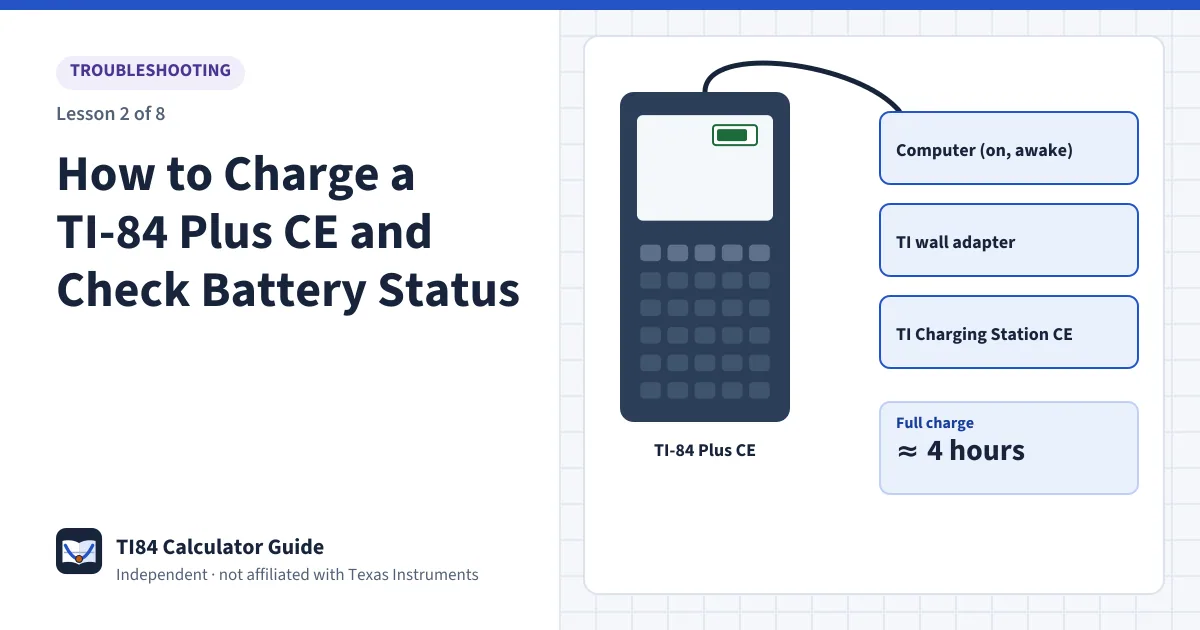
- TI-84 Plus CE: connect it to a supported charger. TI’s Solution 37116 says that if the screen is blank, charge for at least 10 minutes before the next step. See charging a TI-84 Plus CE.
Tier 3: TI’s recovery steps (RAM is cleared)
- TI-84 Plus CE: with the display visible but locked, use a paper clip to press the RESET button on the back for about 2 seconds and release (Solution 37116). TI’s other articles warn not to use a pencil, which can leave debris.
- TI-84 Plus / Silver Edition: remove one AAA battery, hold CLEAR, reinsert the battery and press ON. Release CLEAR when “RAM Cleared” appears, then press CLEAR again (Solution 37315).
If the calculator still misbehaves, TI’s articles continue with reinstalling the operating system and, finally, contacting TI support. Those steps are summarized in TI-84 will not turn on and updating the CE operating system.
Why not jump straight to a reset?
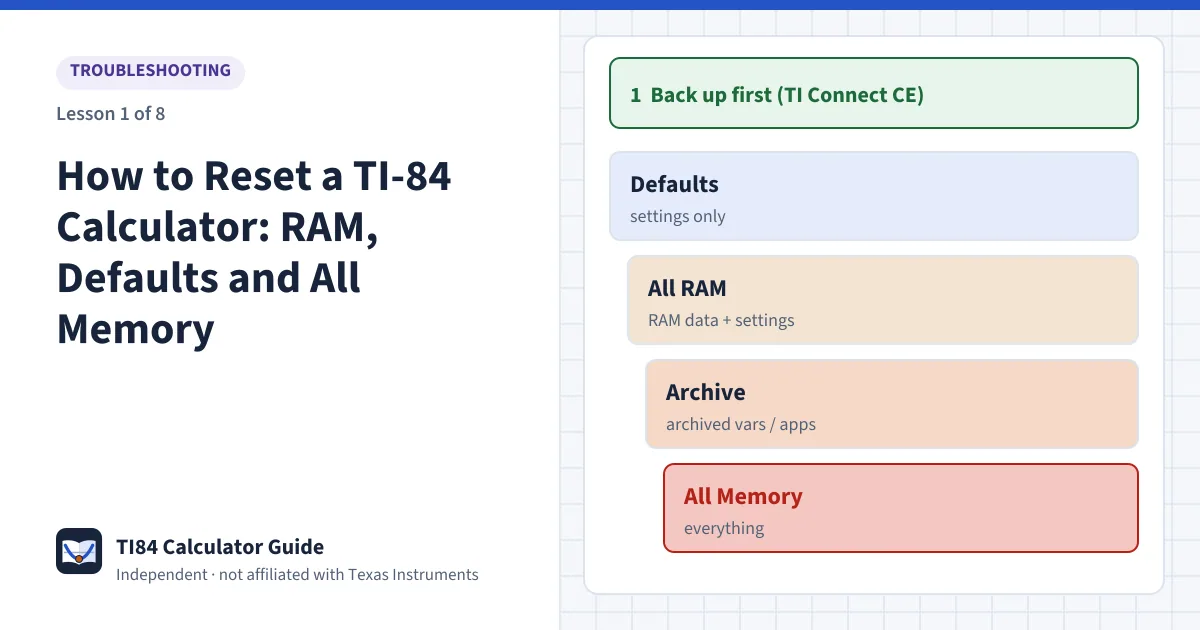
A reset fixes a frozen calculator by deleting the state it was stuck in — along with your work. Breaking a program with ON fixes the same symptom with no loss. For the full set of menu-based resets, read how to reset a TI-84.
Prevent it next time
- Archive programs you care about (2nd + ▸ Mem Mgmt/Del, select an item and archive it). Archived items survive RAM clears.
- Keep a computer backup with TI Connect CE.
- Charge the CE regularly; a fully flat battery clears RAM.
- Be careful running programs from unknown sources.
Sources
- Solution 37116: Troubleshooting a TI-84 Plus CE calculator that is unresponsive — Texas Instruments (checked November 23, 2026)
- Solution 37315: TI-83 Plus or TI-84 Plus family will not turn on or function properly — Texas Instruments (checked November 23, 2026)
- TI-84 Plus Graphing Calculator Guidebook (PDF) — Texas Instruments (checked November 23, 2026)
How this guide was made: written by Paul B. Spicer with AI drafting assistance, following our editorial policy. Key sequences and menu names were checked against the Texas Instruments documents listed above; numeric examples are recomputed by automated tests. Diagrams are original illustrations, not screenshots. TI84 Calculator Guide is independently operated and is not affiliated with, sponsored by or endorsed by Texas Instruments. TI-84 Plus, TI-84 Plus CE and related names are used only to describe the calculators our guides cover. Found a mistake? Send a correction.