Many TI-84 instructions differ slightly between models and operating-system versions. Knowing exactly which calculator you have — and which version it runs — lets you pick the right manual and the right lesson.
Step 1: Read the label
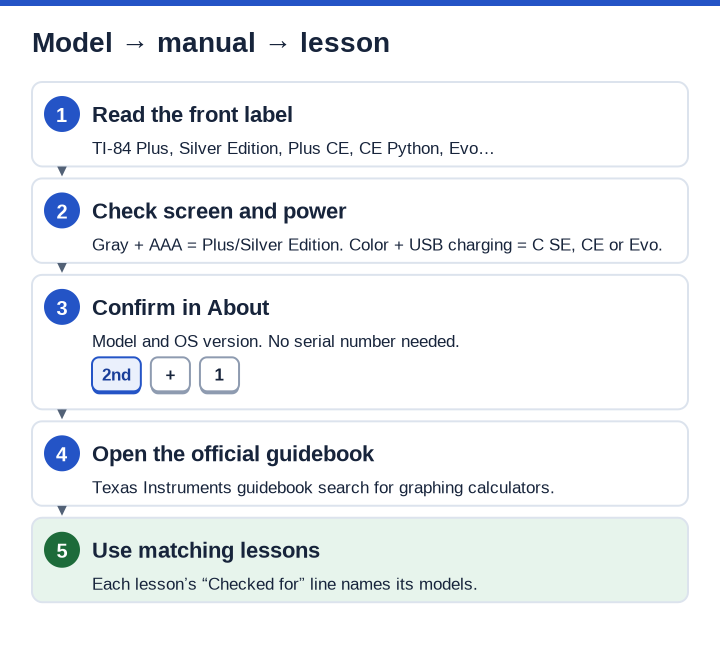
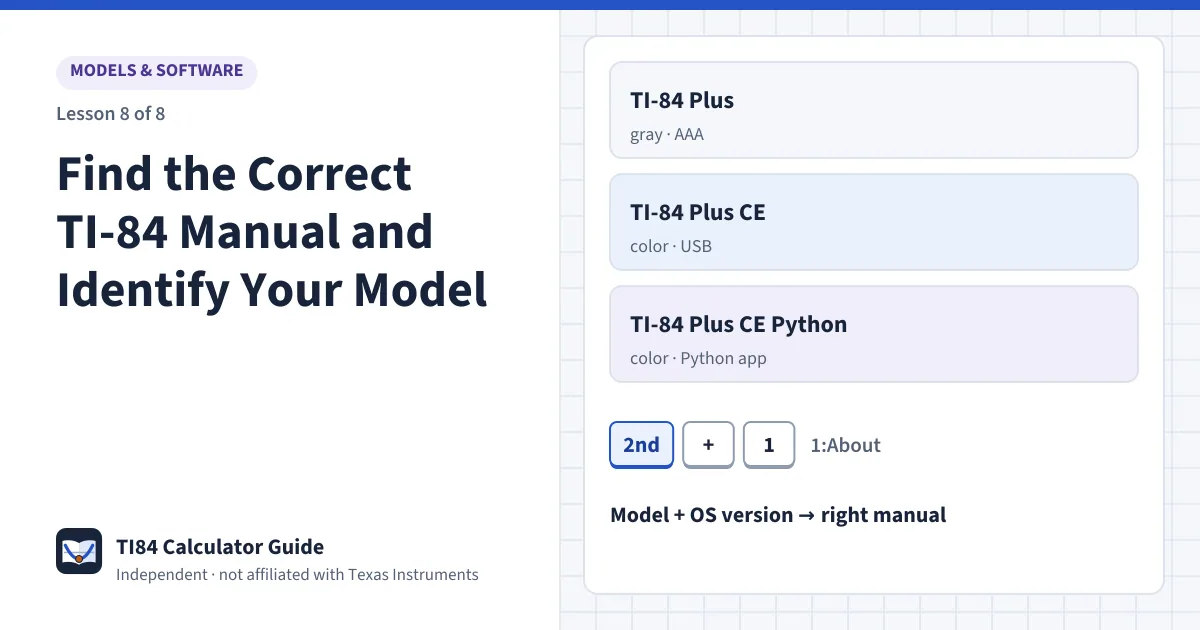
The model name is printed on the front of the calculator. Common names you might see:
| Printed name | Screen | Power | Notes |
|---|---|---|---|
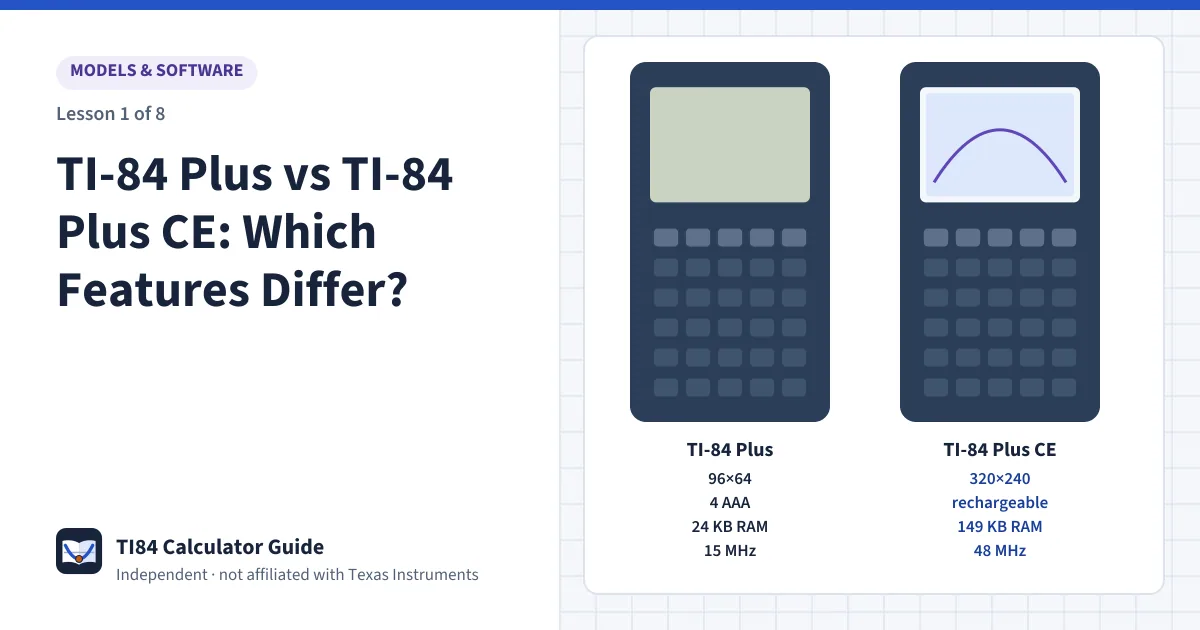
| TI-84 Plus | Gray-scale | 4 AAA + backup cell | The original model in this family |
| TI-84 Plus Silver Edition | Gray-scale | 4 AAA + backup cell | Same core features as the Plus |
| TI-84 Plus C Silver Edition | Color | Rechargeable | An earlier color model |
| TI-84 Plus CE | Color, thin case | Rechargeable (USB) | The current mainstream model |
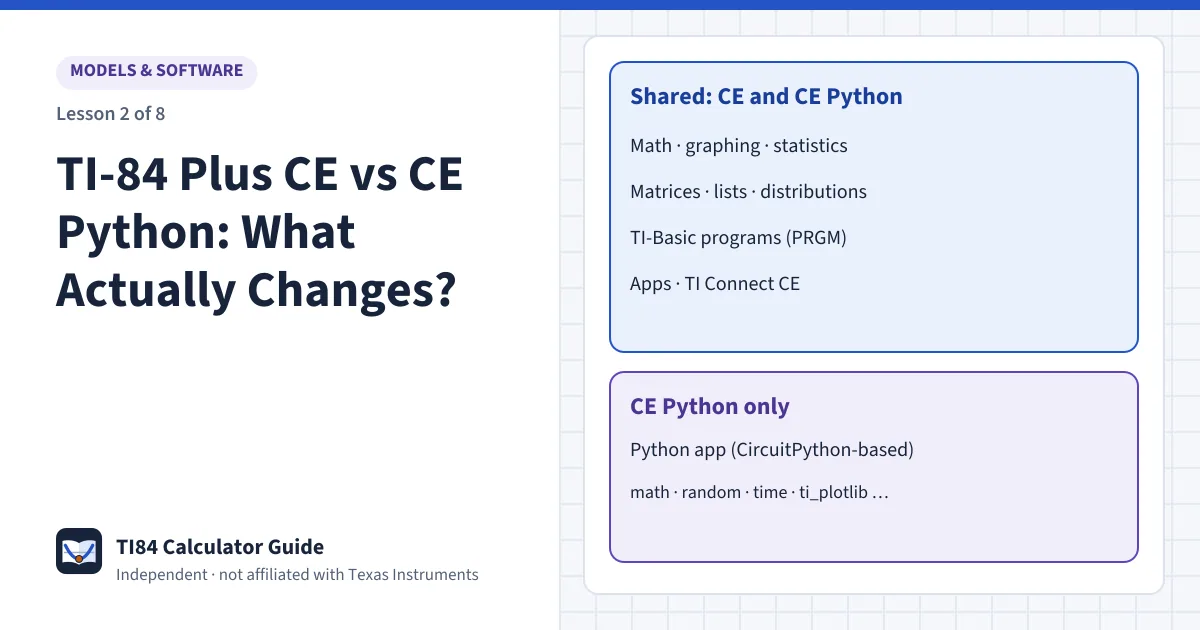
| TI-84 Plus CE Python | Color | Rechargeable (USB) | Adds the Python app |
| TI-84 Evo | Color | Rechargeable (USB-C) | A newer model with its own documentation |
Look at the power too: a battery cover for AAA cells means a Plus or Silver Edition; a USB charging port with no AAA compartment means a color, rechargeable model.
Step 2: Confirm with About
Press 2nd + (MEM) and choose 1:About. The screen shows the model and the operating-system version (for example, 5.x on a CE). Write the version down — menus and features such as MathPrint templates, Stat Wizards and Python modules depend on it.
You do not need to record or share the calculator’s serial number or product ID to follow these guides. We never ask for them.
Step 3: Get the matching official manual
Texas Instruments publishes guidebooks for each model on its guidebook search page for graphing calculators. Choose your exact model, then the version closest to your OS. For example:
- The TI-84 Plus Guidebook covers the Plus and Silver Edition.
- Getting Started with the TI-84 Plus CE (and the CE eGuide) covers the CE; there is a separate guide for the CE Python.
- The TI-84 Evo has its own TI documentation; TI’s knowledge base also has a page comparing it with the CE.
Download manuals only from Texas Instruments. Copies elsewhere may be outdated or altered.
Step 4: Use the right lessons
Every lesson on this site has a “Checked for” line naming the models and sources it was verified against. Start with:
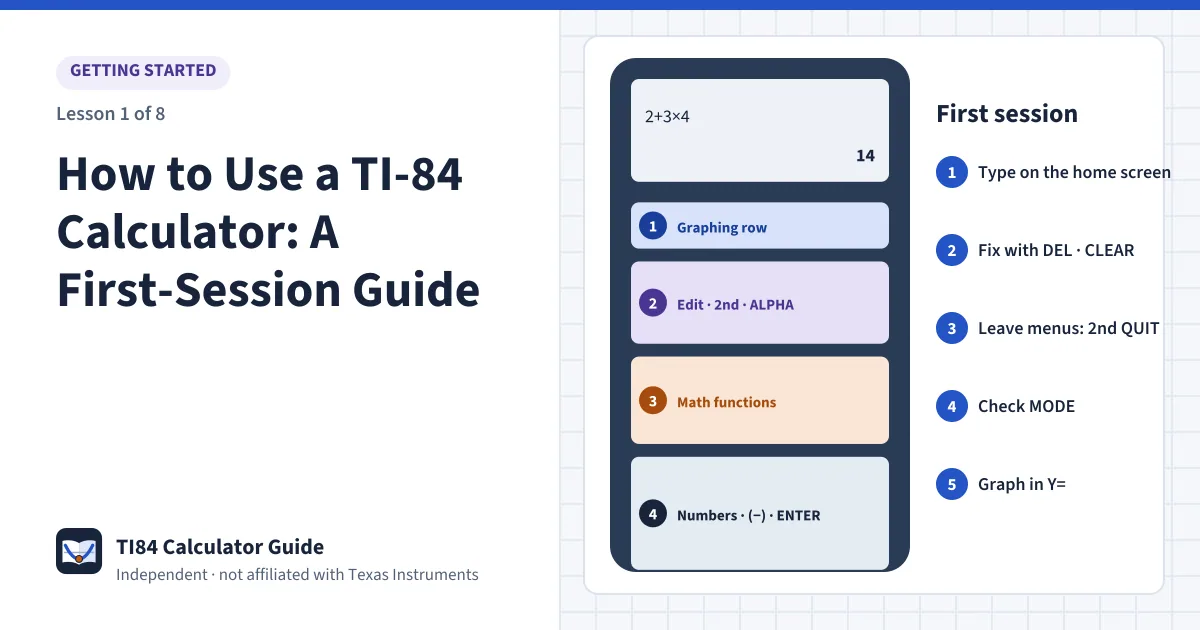
- How to use a TI-84 for a first session.
- TI-84 Plus vs TI-84 Plus CE if you are moving between models.
- CE vs CE Python if you need Python.
- Our model overviews: TI-84 Plus and TI-84 Plus CE.
Common mistakes
- Following a CE video on a Plus — the keys match, but MathPrint templates and wizards may not.
- Assuming “CE” means Python — only the CE Python edition has the Python app.
- Using a manual for a much older OS — menu numbers can differ; match the version from About.
Sources
- TI guidebooks: graphing calculators — Texas Instruments (checked November 23, 2026)
- TI-84 Plus Graphing Calculator Guidebook (PDF) — Texas Instruments (checked November 23, 2026)
- Getting Started with the TI-84 Plus CE Graphing Calculator (PDF) — Texas Instruments (checked November 23, 2026)
- Solution 40502: TI-84 Evo features compared with the TI-84 Plus CE — Texas Instruments (checked November 23, 2026)
How this guide was made: written by Paul B. Spicer with AI drafting assistance, following our editorial policy. Key sequences and menu names were checked against the Texas Instruments documents listed above; numeric examples are recomputed by automated tests. Diagrams are original illustrations, not screenshots. TI84 Calculator Guide is independently operated and is not affiliated with, sponsored by or endorsed by Texas Instruments. TI-84 Plus, TI-84 Plus CE and related names are used only to describe the calculators our guides cover. Found a mistake? Send a correction.