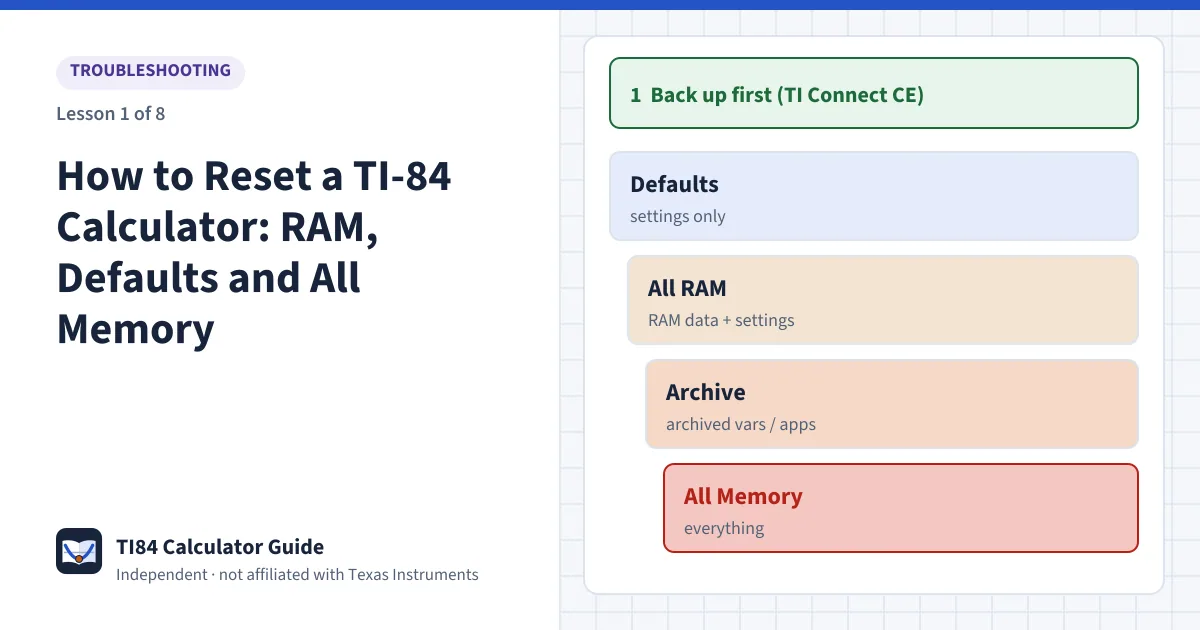
TI Connect CE is Texas Instruments’ free software for moving files between a TI-84 and a computer. It is the safe way to keep copies of programs and data before a reset, an OS update or a test that requires a cleared calculator.
Get the official software
Download TI Connect CE only from Texas Instruments. TI’s product page (checked November 23, 2026) describes it as free connectivity software for the TI-84 Plus family and lists:
- Computers: Windows 11 (64-bit), and recent macOS versions on Intel or Apple silicon. TI notes macOS support depends on Rosetta 2, so check the page for the current list.
- Calculators: TI-84 Plus CE, TI-84 Plus C Silver Edition, TI-84 Plus Silver Edition and TI-84 Plus.
- Features: screen capture, a Calculator Explorer for transferring files, downloading apps and editing programs, and a Program Editor for TI-Basic.
TI’s knowledge base adds that TI Connect CE works over USB; it does not support the older I/O link port or the TI-SilverLink cable.
Copy files to your computer
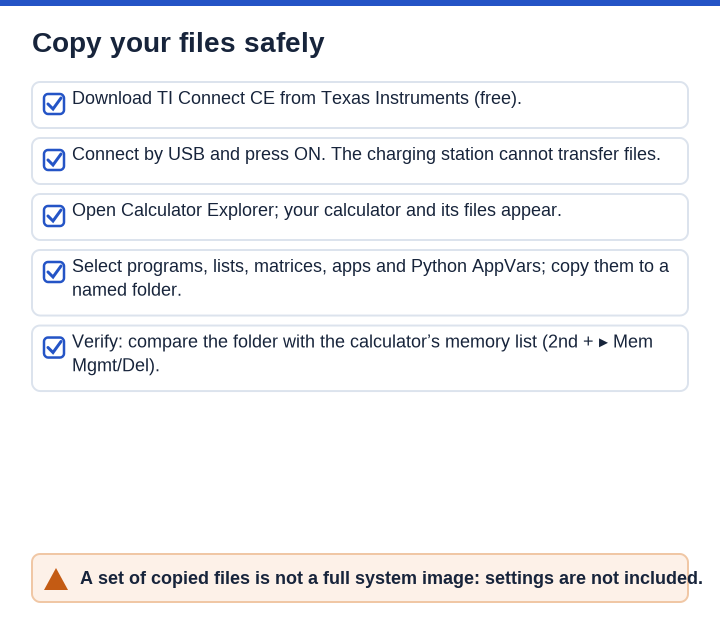
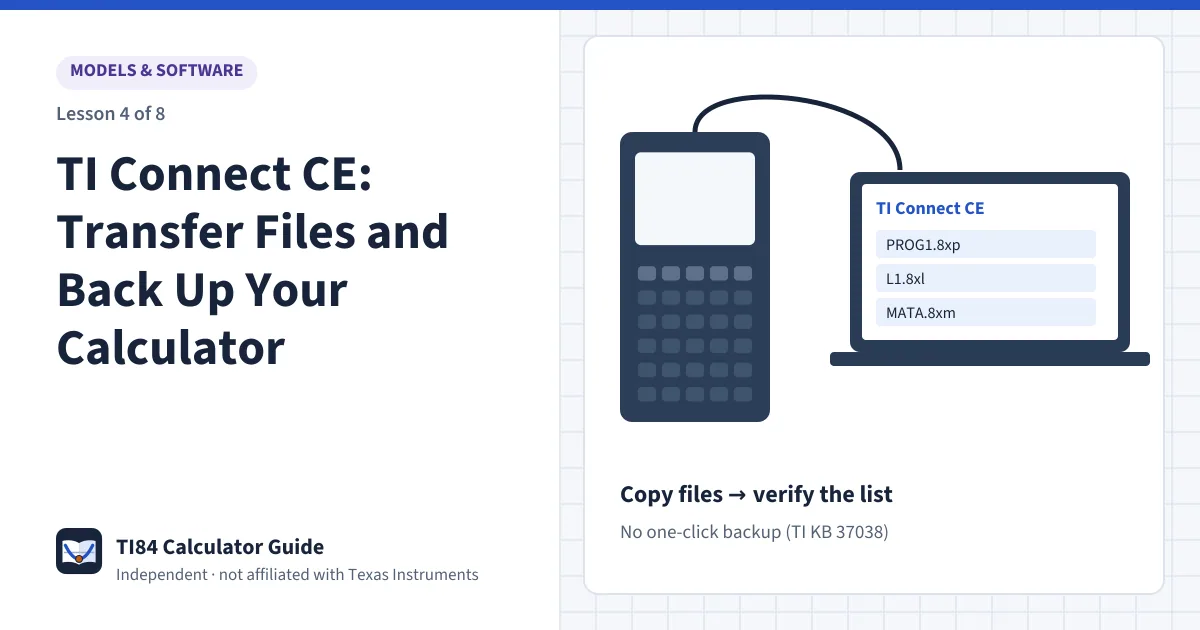
Following TI’s Solution 37038 and the CE eGuide:
- Open TI Connect CE.
- Connect the calculator to the computer’s USB port and press ON.
- Select the Calculator Explorer workspace. Your calculator appears with a list of its contents.
- Select the files you want — programs, lists, matrices, apps, Python AppVars — and use the option to send or save them to the computer. Choose a folder you will remember.
- Check the folder on the computer: every file you need should be there.
A copy is not a full system image
TI’s knowledge base states plainly that TI Connect CE has no built-in “Backup and Restore” function. What you have is a set of copied files. That means:
- Copy everything you care about, including apps you installed yourself and lists you need.
- Settings (MODE, window) are not part of the files; note them if they matter.
- Some items may not transfer if they are protected or system files.
Send files back to a calculator
- Connect and turn on the calculator; open Calculator Explorer.
- Use the option to add content from the computer (or drag files into the calculator’s list).
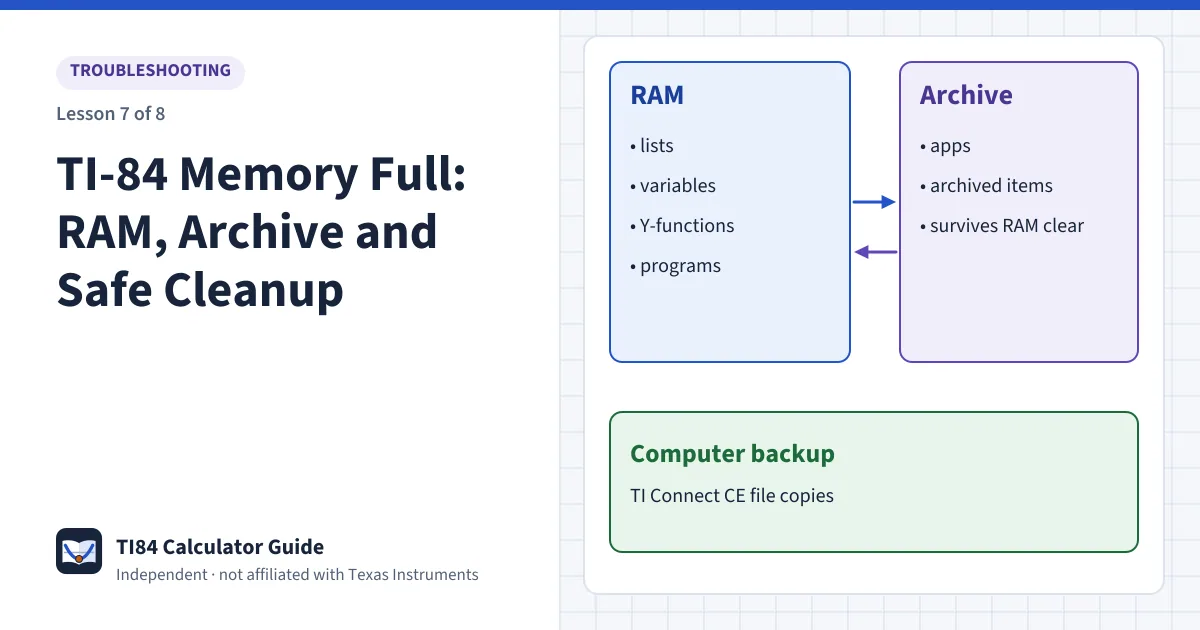
- Choose RAM or Archive if asked. Archive is safer for programs you want to keep.
Python files on the CE Python
TI Connect CE can save Python programs from a CE Python as .py files and convert .py files from a computer into the calculator’s PY AppVar format. Test transferred programs on the calculator, as TI recommends.
Calculator-to-calculator transfers
Two calculators can exchange files with a unit-to-unit cable through the LINK menu (2nd X,T,θ,n). The TI-84 Plus guidebook warns that a full Back Up transfer overwrites the receiving calculator’s RAM. Send individual files unless you mean to replace everything.
Other things TI Connect CE does
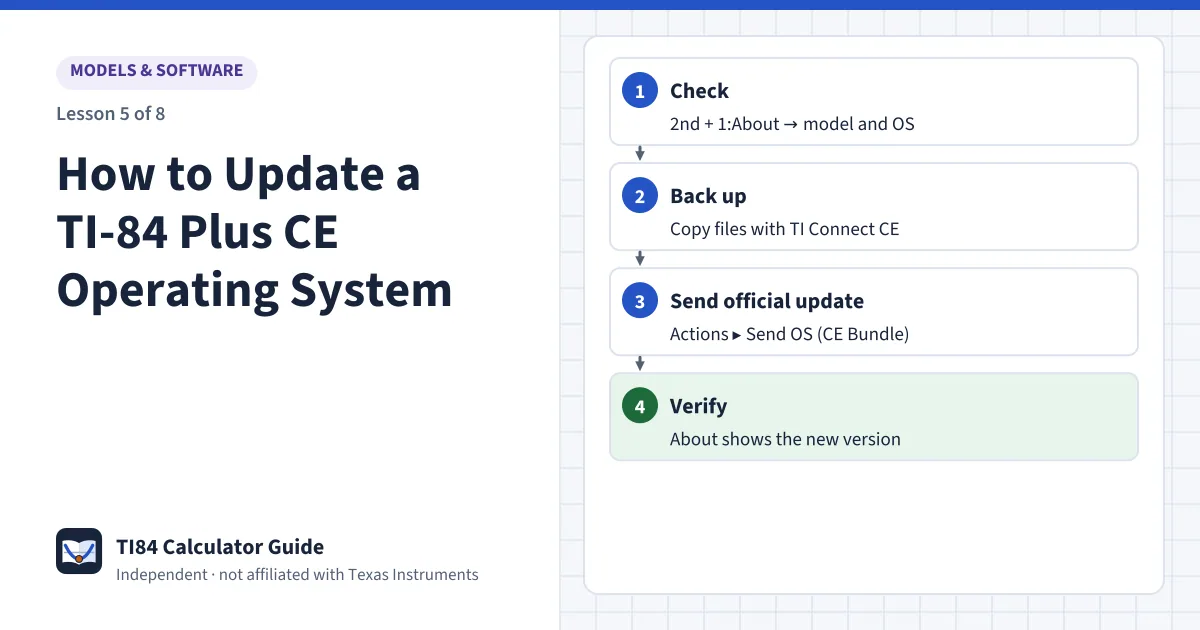
- OS updates — see updating the CE operating system.
- Screen captures for worksheets and notes.
- Exiting exam mode — TI’s documentation describes an action to quit exam mode on connected CE calculators.
Common mistakes
- Downloading from an unofficial site — use TI’s own download page.
- Charging station instead of USB to a computer — TI notes the charging station charges only; it cannot transfer files.
- Assuming a copy includes everything — verify the file list.
Sources
- TI Connect CE software — Texas Instruments (checked November 23, 2026)
- Solution 37038: Backup and restore TI-84 Plus family files with TI Connect CE — Texas Instruments (checked November 23, 2026)
- TI-84 Plus CE eGuide: Copying calculator files to the computer — Texas Instruments (checked November 23, 2026)
How this guide was made: written by Paul B. Spicer with AI drafting assistance, following our editorial policy. Key sequences and menu names were checked against the Texas Instruments documents listed above; numeric examples are recomputed by automated tests. Diagrams are original illustrations, not screenshots. TI84 Calculator Guide is independently operated and is not affiliated with, sponsored by or endorsed by Texas Instruments. TI-84 Plus, TI-84 Plus CE and related names are used only to describe the calculators our guides cover. Found a mistake? Send a correction.